2025.12: Triggering the holidays 🎄
 Franck Nijhof
Home Assistant 2025.12! 🎄
As the year winds down and the holidays approach, we’re closing out 2025 with a release that’s all about giving you more control and a little bit of magic. ✨
This month, we’re unveiling Home Assistant Labs, a brand-new space where you can preview features before they go mainstream. And what better way to kick it off than with Winter mode? ❄️ Enable it and watch snowflakes drift across your dashboard. It’s completely unnecessary, utterly delightful, and exactly the kind of thing we love to build. ❄️
But that’s just the beginning. We’ve been working on making automationsAutomations in Home Assistant allow you to automatically respond to things that happen in and around your home. [Learn more] more intuitive over the past releases, and this release finally delivers purpose-specific triggers and conditions. Instead of thinking in (numeric) states, you can now simply say “When a light turns on” or “If the climate is heating”. It’s automation building the way our mind works, as it should be. 🧠
Oh, and if you’re looking to level up your Zigbee or Thread network, check out the Home Assistant Connect ZBT-2 we released last month. It’s four times faster and has a gorgeous new antenna design that you’ll actually want to display on your desk. 📡
From all of us working on Home Assistant:
Thank you for an amazing 2025! ❤️
Happy holidays, and enjoy the release!
../Frenck
A little holiday cheer 🎄🎶
Jingle Labs by Frenck and Darren
Dashing through the code,
With a brand-new Labs to show,
Snowflakes start to fall,
Watch the dashboard glow!
Triggers now make sense,
Conditions feel just right,
What fun it is to automate,
Your smart home every night!
Chorus
Jingle Labs, jingle Labs,
Features on the way!
Oh what fun it is to run,
Home Assistant every day, hey!
Jingle Labs, jingle Labs,
Winter mode is here!
Turn your lights on with a thought,
And spread some holiday cheer!
Power graphs are live,
Water meters too,
Dashboards you can set,
For every user’s view!
Xbox got some love,
Shelly’s platinum now,
Contributors came through this year,
Take a final bow!
Chorus
Jingle Labs, jingle Labs,
Triggers for the win!
Climate, lights, and fans galore,
Let the automations spin!
Jingle Labs, jingle Labs,
Thank you all so much!
Happy holidays from us,
Now go and automate stuff!
- Home Assistant Labs 🧪
- Purpose-specific triggers and conditions
- More dashboard improvements!
- Power and water in the Energy dashboard
- Integrations
- Other noteworthy changes
- Patch releases
- Need help? Join the community
- Backward-incompatible changes
- All changes
A huge thank you to all the contributors who made this release possible! And a special shout-out to @TimoPtr, @laupalombi, @jlpouffier, and @MindFreeze who helped write these release notes. Also, @edenhaus, @tr4nt0r, @jpbede, @RaHehl, @bieniu, @arturpragacz, and @piitaya for putting effort into tweaking its contents. Thanks to them, these release notes are in great shape. ❤️
Home Assistant Labs 🧪
When we develop new features for Home Assistant, we often find ourselves in a tricky spot. A feature might be fully built and tested, but we’re not entirely sure if it’s the right fit for everyone just yet. Maybe we want to gather some real-world feedback first, or perhaps we want to see how the community uses it before committing to keeping it around forever.
That’s where Home Assistant Labs comes in! 🧪
Labs is a brand-new place in Home Assistant that gives you a sneak peek at features we’re working on. These are not unfinished experiments or unstable beta features. They are fully functional and tested, but they might change or even disappear based on feedback. We are committed to building in the open, and we want to give more people the choice to hop into the lab with us. By joining us, your feedback will directly help refine these features for the entire community.
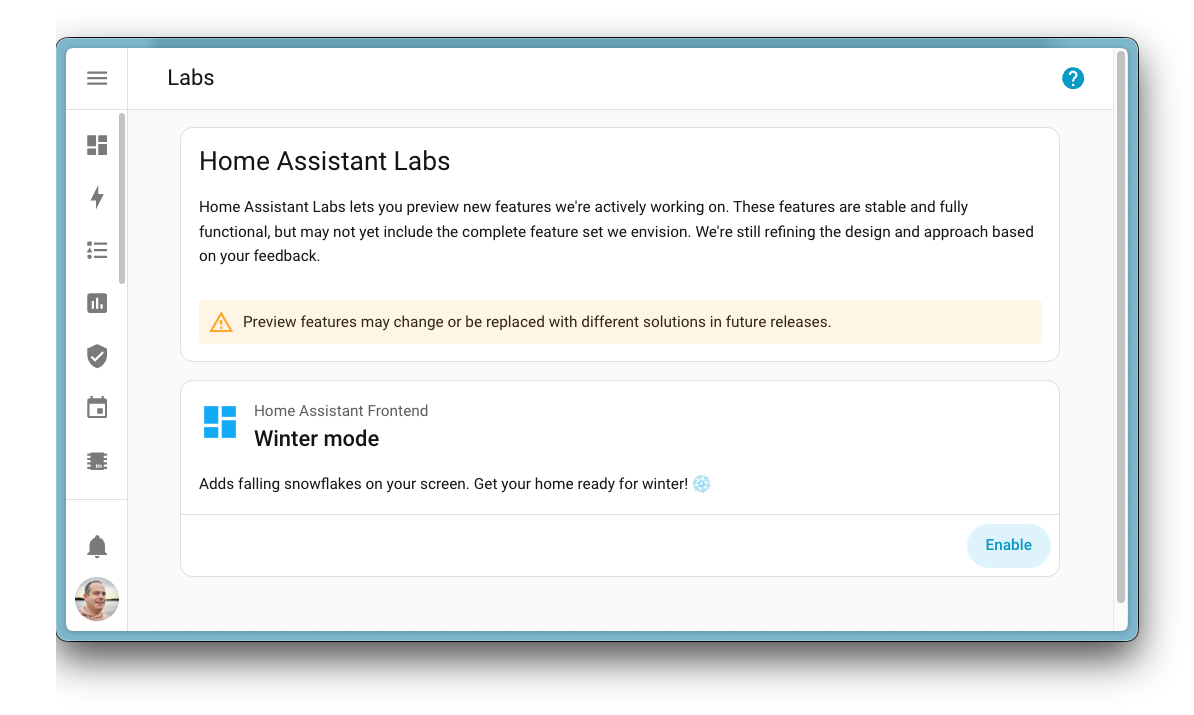
The very first preview feature available in Labs is Winter mode ❄️, inspired by a community post on Reddit originally created by u/Possible-Week-5815. Enable it, and watch your Home Assistant interface transform into a winter wonderland with falling snow. A fun way to get into the holiday spirit!
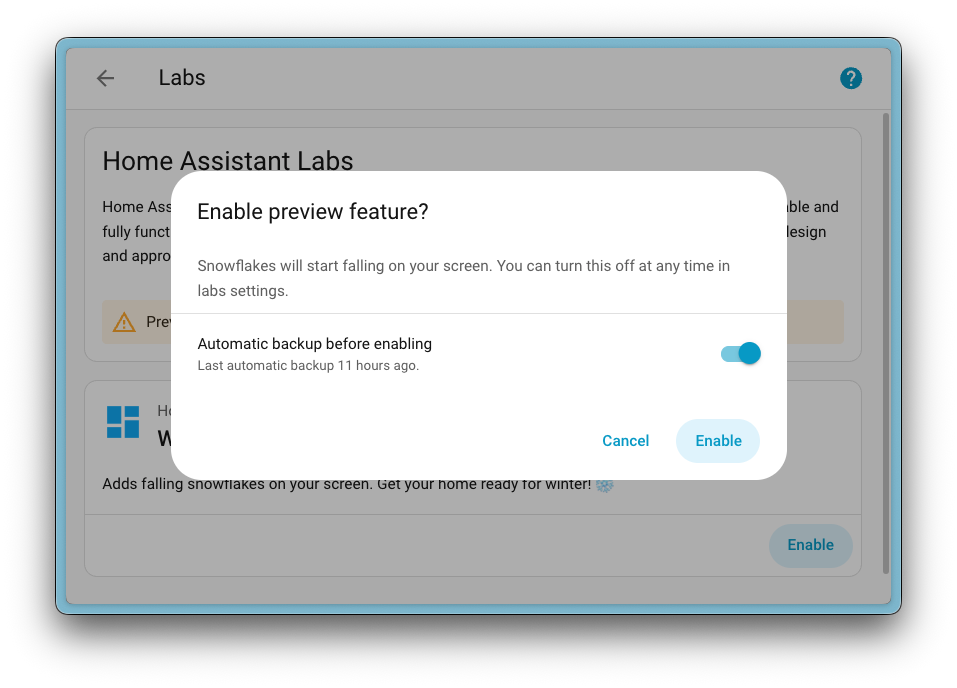
When you enable a preview feature, you can also choose to create a backup first, just to be safe. And if you change your mind? Simply disable it again. No restart required!
Preview features are off by default, and enabling them won’t affect your existing setup. It’s completely optional, so if you prefer to stick with the battle-proven experience, that’s totally fine. But if you’re curious and want to explore what’s coming next, Labs is the place to be.
But what was the first Labs preview feature we put in there? Well, it’s a big one…

Purpose-specific triggers and conditions
Almost two years ago, we released a new automationAutomations in Home Assistant allow you to automatically respond to things that happen in and around your home. [Learn more] editor that unwrapped all our actionsActions are used in several places in Home Assistant. As part of a script or automation, actions define what is going to happen once a trigger is activated. In scripts, an action is called sequence. [Learn more] and made them easier to understand. Instead of a single, obscure “Call service” action, you now see clear options like “Light: Turn on” or “Media Player: Set Volume”.
Ever since, we’ve been wondering: could we do the same for triggersA trigger is a set of values or conditions of a platform that are defined to cause an automation to run. [Learn more] and conditionsConditions are an optional part of an automation that will prevent an action from firing if they are not met. [Learn more]? Instead of relying on technical, state-based options, what if we could offer intuitive alternatives that just make sense? Options like “When a light turns on” or “If a light is on”.
That idea set a two-year plan in motion, and today it’s finally becoming a reality.
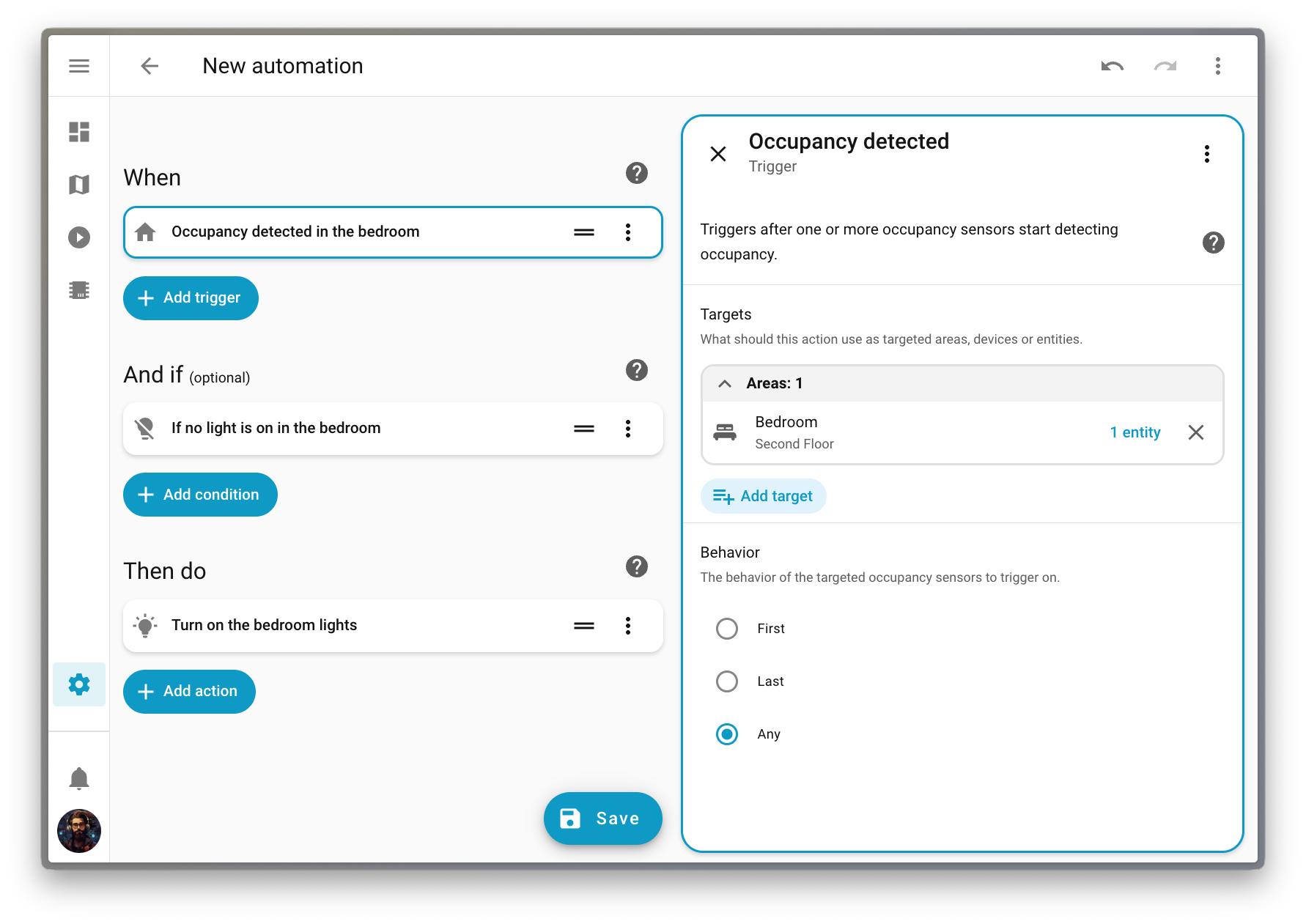
Along the way, we discovered something interesting: many of you take a “target-first” approach when building automationsAutomations in Home Assistant allow you to automatically respond to things that happen in and around your home. [Learn more]. You think about what you want to automate (a deviceA device is a model representing a physical or logical unit that contains entities., an entityAn entity represents a sensor, actor, or function in Home Assistant. Entities are used to monitor physical properties or to control other entities. An entity is usually part of a device or a service. [Learn more], or an areaAn area in Home Assistant is a logical grouping of devices and entities that are meant to match areas (or rooms) in the physical world: your home. For example, the living room area groups devices and entities in your living room. [Learn more]) before thinking about how to automate it (which action to perform or which trigger to use). This release embraces that mindset with a completely new way to build automations.
Purpose-specific triggers and conditions are now provided directly by domainsEach integration in Home Assistant has a unique identifier: The domain. It is often shown as the first part (before the dot) of entity IDs. like Light, Climate, Fan, and others, covering the most common automation use cases.
These new triggers and conditions fully support targeting. This means you can trigger an automation when any light in your living room turns on, without having to list them one by one or create a group beforehand. Targeting an area keeps things simple: it’s always aligned with how your home is organized, and you don’t have to update anything when you add or remove devices.
LabelsLabels in Home Assistant allow grouping elements irrespective of their physical location or type. Labels can be assigned to areas, devices, entities, automations, scenes, scripts, and helpers. Labels can be used in automations and scripts as a target for actions. Labels can also be used to filter data. [Learn more] are supported too! You can now check if any of your Christmas lights are on. Perfect timing for the holidays! 🎄
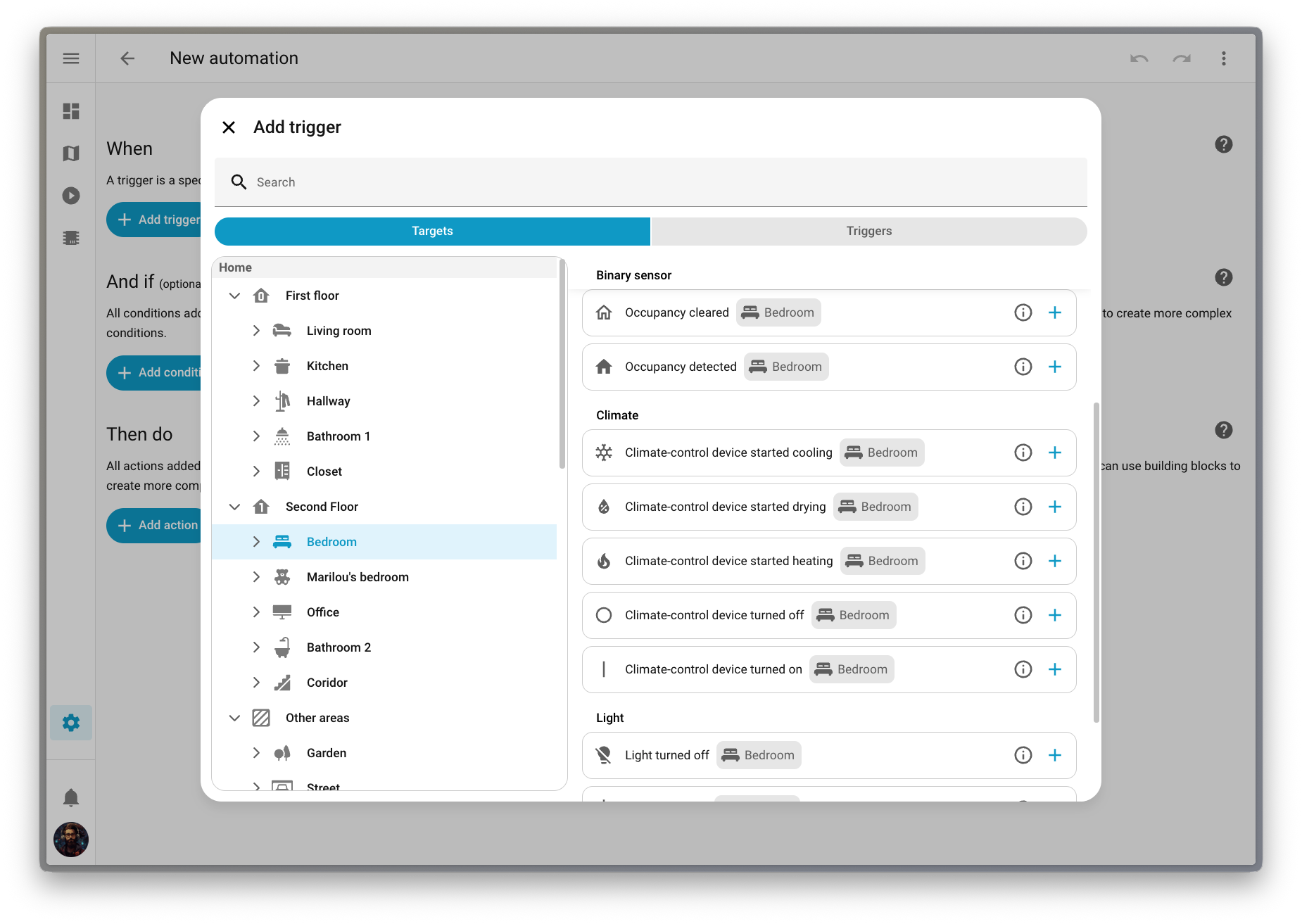
We’ve also introduced a new way to pick triggers, conditions, and actions that fits this target-first approach. You can navigate your home by floorA floor in Home Assistant is a logical grouping of areas that are meant to match the physical floors in your home. Devices & entities are not assigned to floors but to areas. Floors can be used in automations and scripts as a target for actions. For example, to turn off all the lights on the downstairs floor when you go to bed. [Learn more], then area, then device, and see exactly which options are available for each target. It’s a much more intuitive way to build automationsAutomations in Home Assistant allow you to automatically respond to things that happen in and around your home. [Learn more].
This feature is still being refined, so we’ve made it available as a preview feature in Labs. Head over to Settings > System > Labs to enable it and help us shape the future of automation building!
More dashboard improvements!
We have a lot of dashboard improvements to share in this release! From better default dashboard management to an improved Home dashboard, we have been busy making your Home Assistant experience even better.
Set a system-wide default dashboard
Picking a default dashboard is now a system-level setting that takes effect instantly for all users on your Home Assistant installation. The dashboard you choose will appear at the top of the sidebar, replacing the current default.
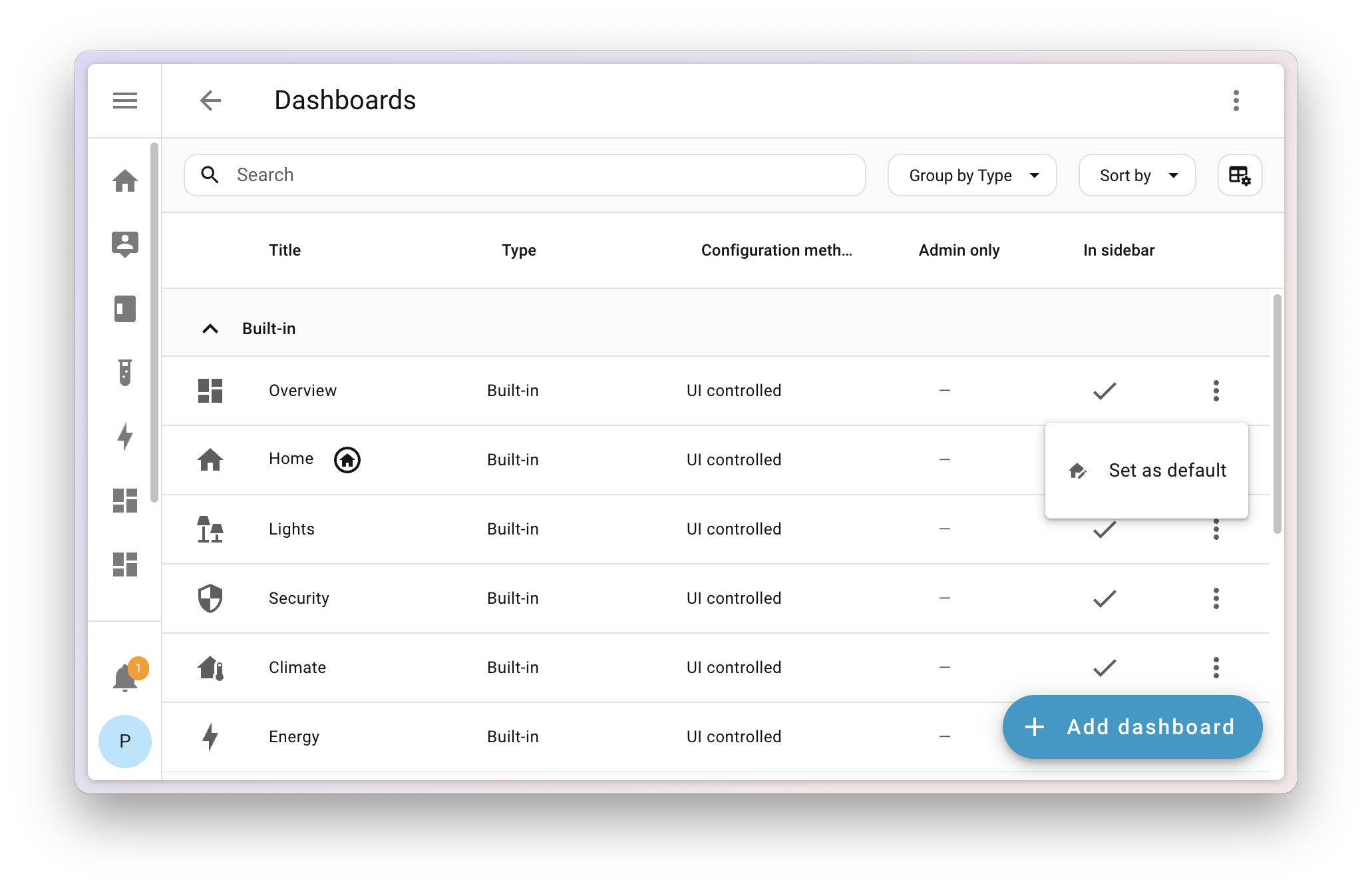
But don’t worry, personal preferences still matter! We added a new setting in your User profile where you can override the system default and set your own preferred dashboard.
If you set your phone to one dashboard and your wall tablet to another, they’ll now both revert to the default dashboard. If you want your wall tablet to use a different dashboard than your other devices, we recommend giving it a separate user profile that you can customize however you want.
Reorder areas and floors
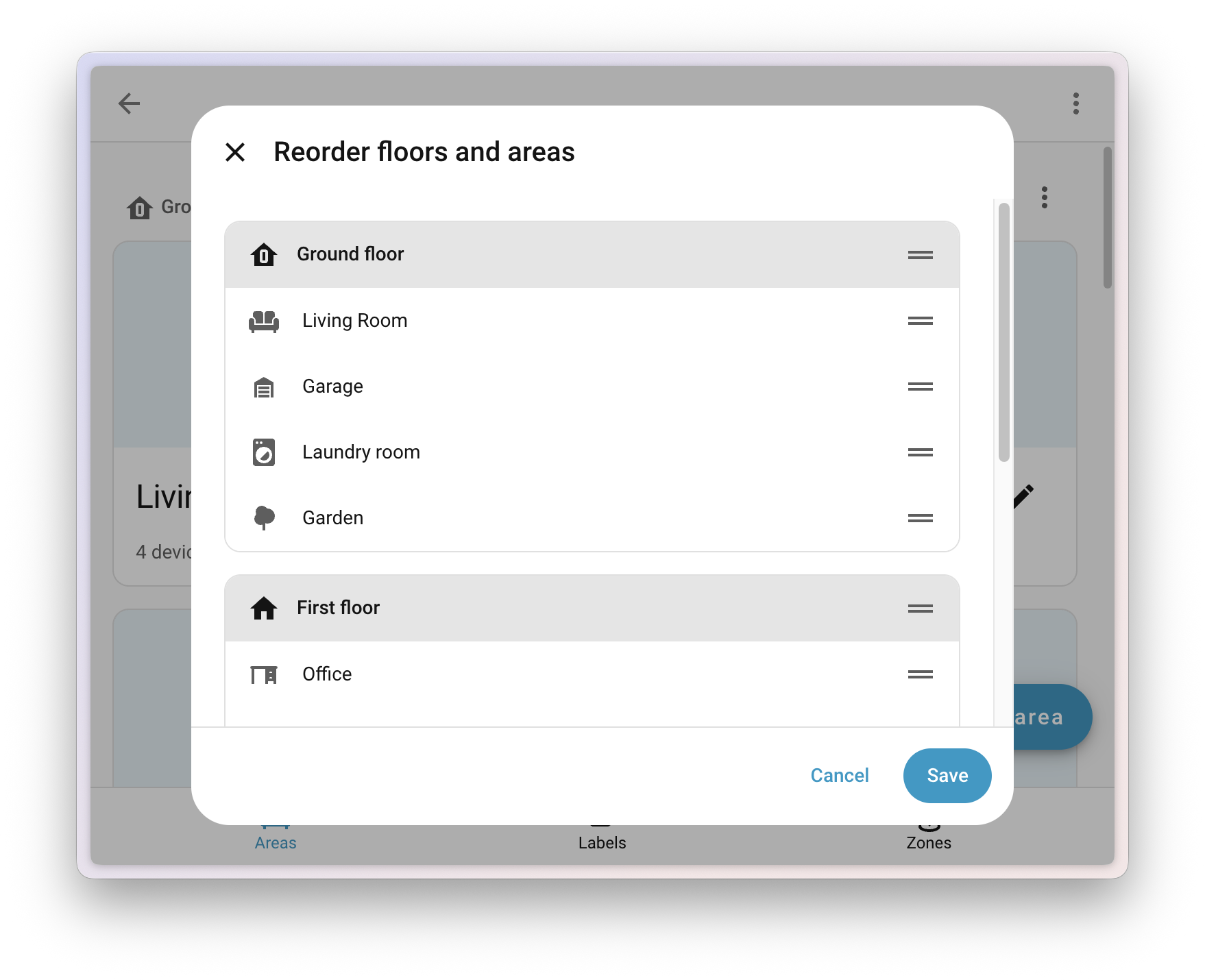
When using the built-in dashboard experiences (Home, Lights, Security, and others), one of the main pain points was the strict ordering of areasAn area in Home Assistant is a logical grouping of devices and entities that are meant to match areas (or rooms) in the physical world: your home. For example, the living room area groups devices and entities in your living room. [Learn more] (alphabetically) and floorsA floor in Home Assistant is a logical grouping of areas that are meant to match the physical floors in your home. Devices & entities are not assigned to floors but to areas. Floors can be used in automations and scripts as a target for actions. For example, to turn off all the lights on the downstairs floor when you go to bed. [Learn more] (numerically by level). This often didn’t make sense in a real home, where your guest bathroom shouldn’t appear before your living room, and the attic is rarely more relevant than the main floor.
Now you can go to Settings > Areas, labels & zones and use the new Reorder floors and areas menu to manually drag and drop any area or floor to reorder them. Your changes will instantly apply to all built-in dashboards that show areas and floors.
Experimental dashboards have graduated
With the launch of Labs, we retired the experimental flag from the dashboard creation list. The Home dashboard can now be found in the dashboard list (still not visible by default), and the Areas dashboard has evolved into Home, so we’ve removed it for now. If you’re using the Areas dashboard, it will continue to work; you just won’t be able to create another.
We want to keep hearing your voice! Share your experience with us in the Home dashboard survey and help us improve every step of the way. And of course join us on Discord to work together on the future of dashboards.
Home dashboard improvements
We added a new sidebar to the Home dashboard that gathers quick access links we think are useful for you. There’s also a nicer area and floor layout that uses space more efficiently. On a more technical level, the Home dashboard is now a proper built-in dashboard and shows up in the dashboard list.
There is a chance your current favorites might disappear in this release and need to be re-added. This is due to the migration of this dashboard from a strategy to a built-in dashboard.
Undo and redo in the dashboard editor
The dashboard editor now includes the undo and redo feature that we added in 2025.10 to the automationAutomations in Home Assistant allow you to automatically respond to things that happen in and around your home. [Learn more] and scriptScripts are components that allow you to specify a sequence of actions to be executed by Home Assistant when turned on. [Learn more] editor. This allows you to experiment safely while editing your dashboards. You can undo up to 75 changes or restore them with a single click, making editing dashboards faster and less stressful.
Thanks to @jpbede for implementing this handy feature!
Power and water in the Energy dashboard
The Energy dashboard has been helping you track your energy and gas usage for years now, and this release brings two great additions: real-time power monitoring and downstream water tracking.
Real-time power monitoring
Until now, the Energy dashboard was all about energy: the cumulative kWh you’ve consumed or produced over time. But sometimes you want to know what’s happening right now. How much power is that appliance actually drawing? Is your solar system producing at this very moment?
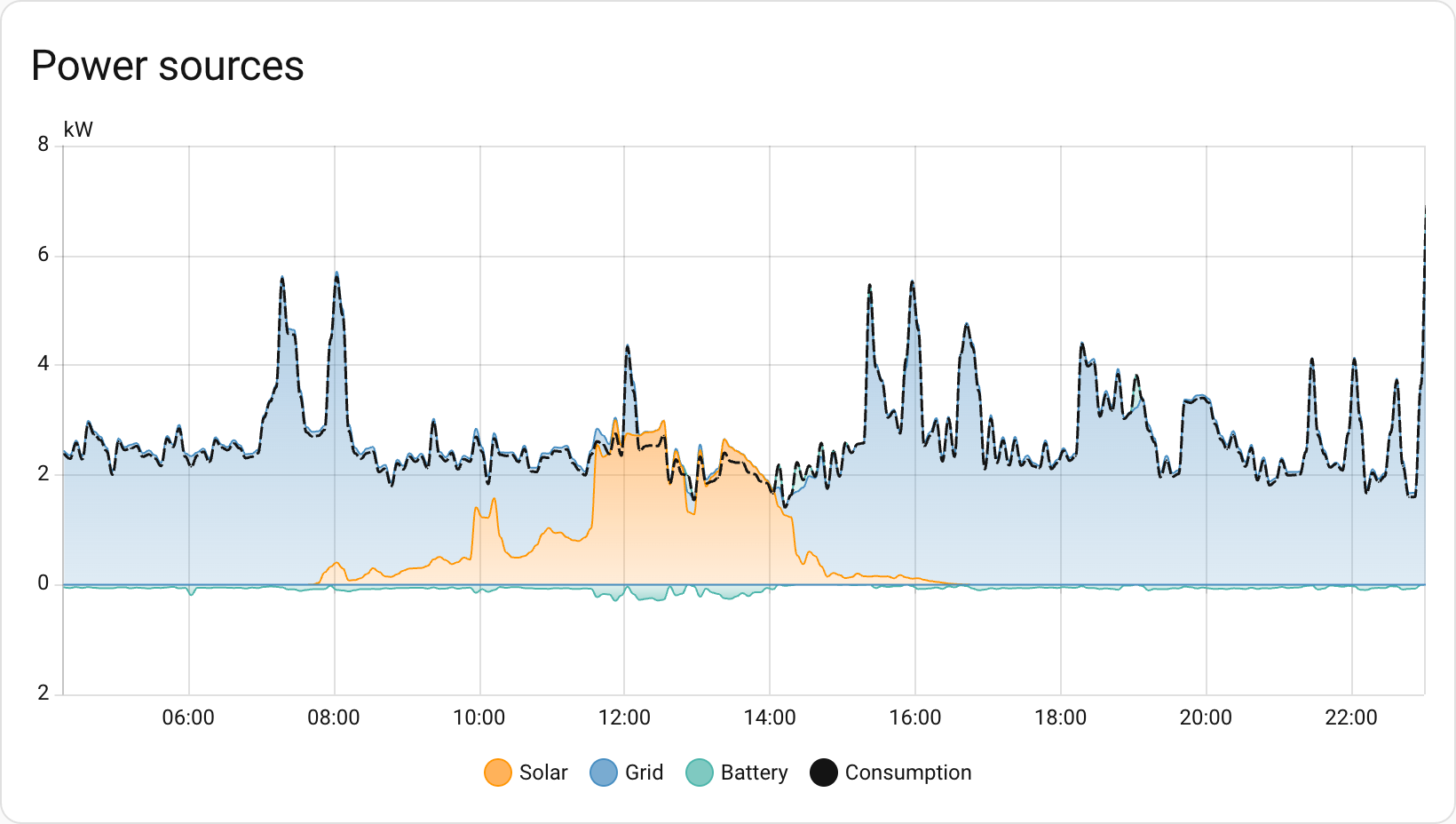
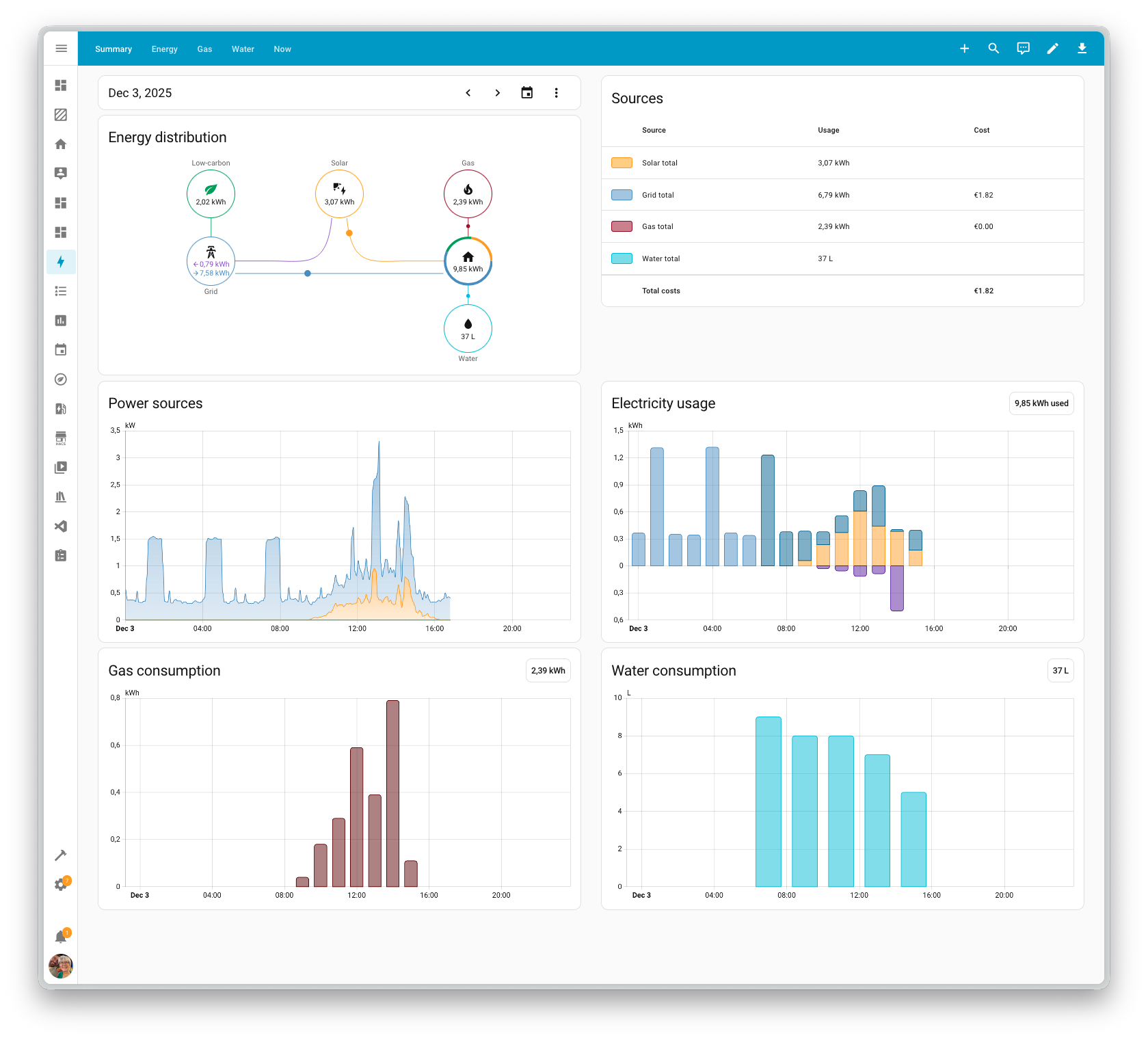
With this release, you can now configure power sensors alongside your energy sensors. Track your real-time grid consumption, see how much you’re exporting back to the grid, and watch those watts flow in real-time. The power configuration options now appear alongside energy settings for each source or device, and new power graphs let you see your power consumption throughout the day.
Downstream water meters
The Energy dashboard has been tracking your water consumption for a while now, but it was missing something: the ability to see where all that water is actually going. Just like you can track individual devices for energy consumption, you can now add downstream water meters to break down your water usage.
Got a smart irrigation controller? A water softener with a flow meter? A separate meter for your pool? Now you can track them all and see exactly how your water consumption is distributed across different uses.
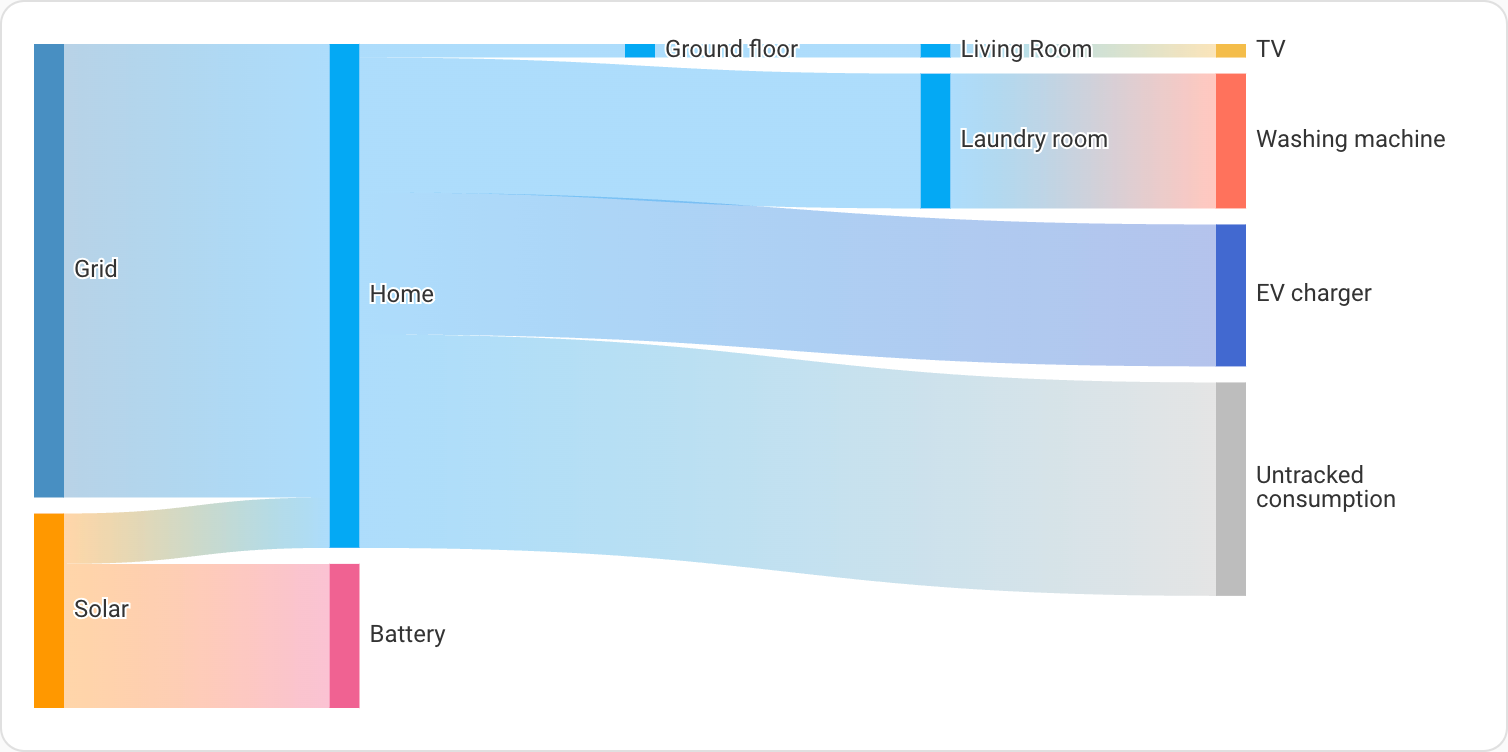
There’s also a brand-new water sankey card that visualizes your water flow, just like the energy sankey diagram you already know. It’s a great way to see where your water is going at a glance.
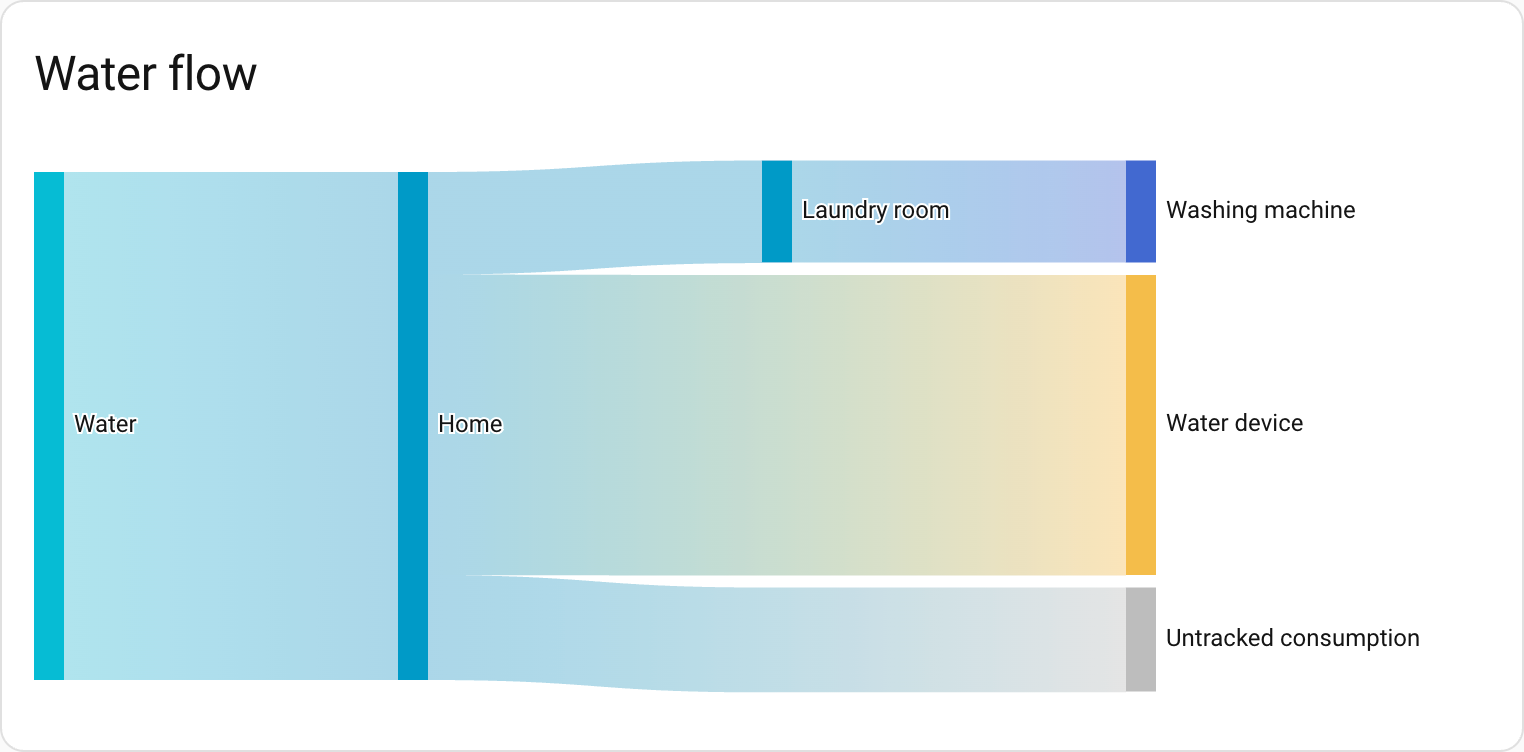 The new water sankey card shows where your water is going at a glance.
New energy layout
To make room for this new functionality, the Energy dashboard has been reorganized. Don’t worry: if you only have energy configured, you’ll still see the same dashboard. But if you add water, gas, or power, the dashboard will be split into several tabs.
Integrations
Thanks to our community for keeping pace with the new integrationsIntegrations connect and integrate Home Assistant with your devices, services, and more. [Learn more] and improvements to existing ones! You’re all awesome 🥰
New integrations
We welcome the following new integrations in this release:
-
Airobot, added by @mettolen
Control and monitor your Airobot smart thermostats for intelligent floor heating control via the local REST API. -
Anglian Water, added by @pantherale0
Integrate your Anglian Water smart water meter to track water usage and consumption costs. -
Backblaze B2, added by @ElCruncharino
Use a Backblaze B2 cloud storage bucket as a backup location for your Home Assistant backups. -
EnergyID, added by @Molier
Sync anything from your home directly to EnergyID for advanced analytics, performance tracking and benchmarking. -
Essent, added by @jaapp
Monitor dynamic electricity and gas prices for Essent customers in the Netherlands with variable pricing contracts. -
Google Air Quality, added by @Thomas55555
Get real-time air quality data for your location using Google’s Air Quality API. -
Google Weather, added by @tronikos
Use Google Weather as a source for weather data, providing current conditions, hourly forecasts for the next 24 hours, and daily forecasts for the next 10 days. -
Hanna, added by @bestycame
Fetch pool water quality data from your Hanna Pool Controller device, including pH, chlorine levels, ORP values, and water temperature. -
Home Assistant Labs, added by @frenck
A dedicated panel where you can preview and test new features before they become standard in Home Assistant. -
Philips Hue BLE, added by @flip-dots
Control your Philips Hue Bluetooth lights directly with Home Assistant, without the need for a Hue Bridge. -
Saunum, added by @mettolen
Integrate your Saunum Leil sauna control unit to precisely control temperature and monitor your sauna’s operation. -
Victron BLE, added by @rajlaud
Integrate Victron Energy devices that support the Bluetooth Low Energy protocol for real-time monitoring.
This release also has new virtual integrations. Virtual integrations are stubs that are handled by other (existing) integrations to help with findability. These ones are new:
- Cosori, provided by VeSync, added by @joostlek
- VÁGNER POOL, provided by SEKO PoolDose, added by @lmaertin
Noteworthy improvements to existing integrations
It is not just new integrationsIntegrations connect and integrate Home Assistant with your devices, services, and more. [Learn more] that have been added; existing ones are also being constantly improved. Here are some of the noteworthy changes to existing integrations:
- @piitaya updated the ESPHome integration to let Home Assistant generate entity IDs using its standard rules, aligning it with how other integrations work.
- Thanks to @bdraco, you can configure Wi-Fi on Shelly generation 2+ devices directly from Home Assistant via Bluetooth.
- Shelly now supports control modes for upcoming Shelly Cury devices. Nice work, @bieniu!
- Thanks to @gjohansson-ST, System Monitor now exposes fan sensors and battery sensors for your system.
- The Tuya integration received a lot of love! Cat litter boxes now expose switches, buttons, lights, and sensors for controlling your pet’s automated litter box. On top of that, doorbell events are now supported too. Thanks, @heindrichpaul!
- @starkillerOG expanded the Reolink integration with an exposure mode select and audio noise reduction controls for supported cameras.
- The OpenAI Conversation integration now supports GPT-5.1 models. Great work, @Shulyaka!
- Air conditioner and microwave support has landed in the Home Connect integration, expanding the range of supported BSH appliances. Thanks, @Diegorro98!
- @zerzhang added support for the SwitchBot smart thermostat radiator to the SwitchBot integration. Nice!
- The Xbox integration got some love from @tr4nt0r! You can now link multiple Xbox accounts, track how many friends you (and your friends) have, see if they’re in a party, and control more remote functions. The media browser also gained a new category showcasing official game art and screenshots.
- Got an Ecovacs robot? The Ecovacs integration now has a border spin switch (to reach those tricky edges while mopping) and an auto-empty select entity. Thanks, @aronnebrivio!
- The VeSync integration gained a child lock switch, giving you control over this safety feature for your devices. Thanks, @cdnninja!
- @XiaoLing-git added support for the SwitchBot smart radiator thermostat to the SwitchBot Cloud integration.
- The SQL integration now supports using templates in your queries, giving you more flexibility when querying your databases. Great addition, @gjohansson-ST!
-
@tomwilkie expanded the Prometheus integration to export metrics for the
water_heaterdomain. - The Anthropic integration now supports AI task entities. Thanks, @Shulyaka!
- Portainer can now show you resource usage of your containers. Nice work, @erwindouna!
- @thomasddn added a button to enable reduced guard mode for compatible vehicles to the Volvo integration.
- The Plugwise integration now supports the new Anna P1 device and gained a select entity for zone profiles on Adam devices. Thanks, @bouwew!
- Bang & Olufsen users can now use their Beoremote One with Home Assistant. The remote’s buttons are exposed as event entities. Awesome, @mj23000!
- @VandeurenGlenn added the climate platform to Niko Home Control, letting you control your Niko heating zones.
- The Saunum integration now supports fan control, giving you control over your sauna ventilation. Thanks, @mettolen!
- @nasWebio added alarm control panel support to the NASweb integration, allowing you to arm and disarm your security system.
- The Nederlandse Spoorwegen integration received a refactor to improve reliability and maintainability. Thanks, @heindrichpaul!
Integration quality scale achievements
One thing we are incredibly proud of in Home Assistant is our integration quality scale. This scale helps us and our contributors to ensure integrations are of high quality, maintainable, and provide the best possible user experience.
This release, we celebrate several integrationsIntegrations connect and integrate Home Assistant with your devices, services, and more. [Learn more] that have improved their quality scale:
-
2 integrations reached platinum 🏆
- Brother Printer, thanks to @bieniu
- Shelly, thanks to @davidrapan
-
1 integration reached gold 🥇
- Google Assistant SDK, thanks to @tronikos
-
2 integrations reached silver 🥈
- LCN, thanks to @alengwenus
- Telegram bot, thanks to @hanwg
-
2 integrations reached bronze 🥉
- Music Assistant, thanks to @OzGav
- Transmission, thanks to @andrew-codechimp
This is a huge achievement for these integrations and their maintainers. The effort and dedication required to reach these quality levels is significant, as it involves extensive testing, documentation, error handling, and often complete rewrites of parts of the integration.
A big thank you to all the contributors involved! 👏
Now available to set up from the UI
While most integrationsIntegrations connect and integrate Home Assistant with your devices, services, and more. [Learn more] can be set up directly from the Home Assistant user interface, some were only available using YAML configuration. We keep moving more integrations to the UI, making them more accessible for everyone to set up and use.
The following integration is now available via the Home Assistant UI:
Farewell to the following
The following integrationsIntegrations connect and integrate Home Assistant with your devices, services, and more. [Learn more] are no longer available as of this release:
- Dominos Pizza: The Dominos Pizza integration has been removed. The integration no longer functions and its underlying source has been unmaintained since 2019.
- Flick Electric: The Flick Electric integration has been removed. All customers of the Flick Electric company have already been moved to Meridian Energy. The service this integration used is already non-functional.
- The following integrations have been removed as they are incompatible with the currently supported installation methods:
- Bluetooth Tracker
- CUPS
- Decora
- dlib Face Detect
- dlib Face Identify
- Eddystone Temperature
- GStreamer
- Keyboard
- LIRC
- Pandora
- Raspberry Pi Camera
- SMS
- Snips
- TensorFlow
Other noteworthy changes
There are many more improvements in this release; here are some of the other noteworthy changes:
- New template math functions! @akx added
clamp,wrap, andremapto manipulate numbers in your templates. Awesome! - The activity card now supports filtering by state, making it easier to see specific events. Nice one, @karwosts!
-
@MindFreeze added
minandmaxoptions to the bar gauge feature for tile cards, giving you more control over the gauge range. - You can now delete helpers directly from the helpers panel, without having to open them first. Thanks, @frenck!
- The blueprints panel now shows how many automations and scripts use each blueprint. Great for keeping track, @EarMaster!
- @timmo001 added a handy trick: double-click the automation editor sidebar to reset its width.
- Labels now show up on the device information card, making it easier to see how your devices are organized. Thanks again, @timmo001!
Get insight into your AI conversations
Ever played around with AI in Home Assistant and wondered what data is actually being sent?
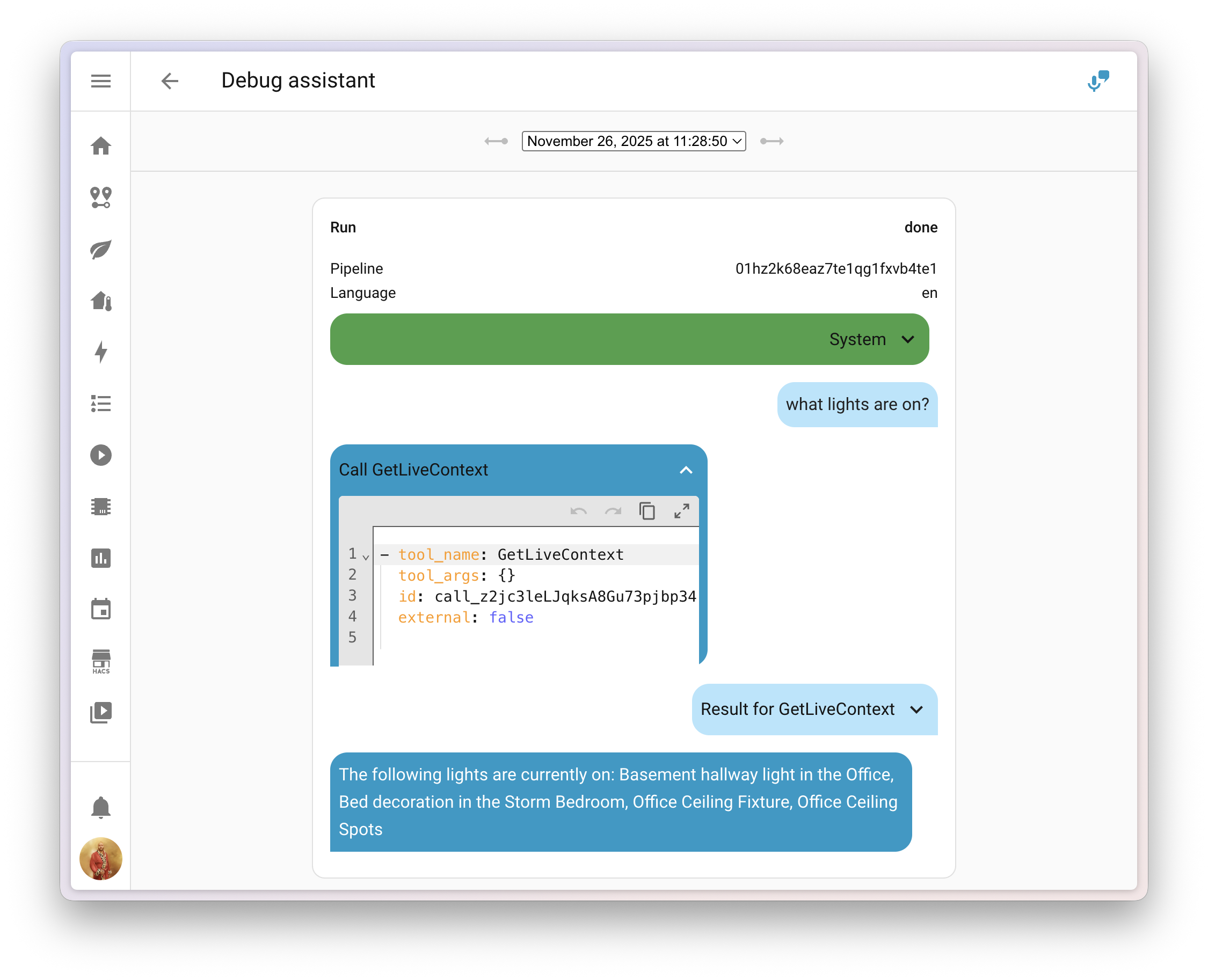
@balloob upgraded the voice assistant debug interface, and you can now inspect the system prompt that tells the AI how to behave, along with any tool calls it made to generate your answer.
This makes it much easier to figure out why the AI decided to skip over that one entityAn entity represents a sensor, actor, or function in Home Assistant. Entities are used to monitor physical properties or to control other entities. An entity is usually part of a device or a service. [Learn more], or why it called a specific tool. You can find the debug interface in the voice assistant configuration panel.
Add entities to Android widgets and favorites
If you’re using the Home Assistant Companion app for Android, there’s a handy new feature waiting for you! Starting with app version 2025.11, you can now add entitiesAn entity represents a sensor, actor, or function in Home Assistant. Entities are used to monitor physical properties or to control other entities. An entity is usually part of a device or a service. [Learn more] to widgets and Android Auto favorites directly from the entity’s more info dialog.
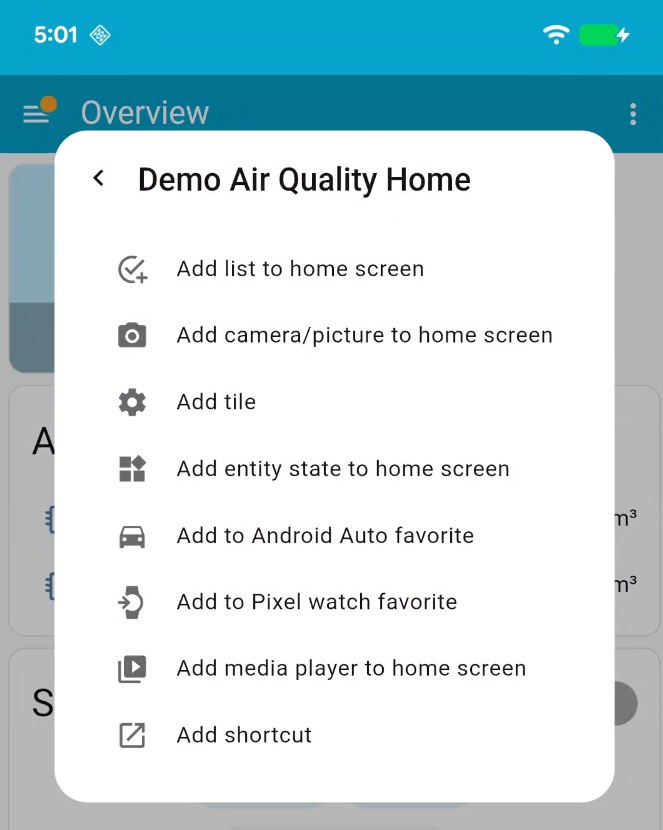
With just a few taps, you can:
- Add widgets for quick control of entities right from your home screen
- Set entities as Android Auto favorites, making them quickly accessible in your car
No more deep-diving into app settings! The Add to option appears in the more info dialog with options tailored to the entity you’re viewing. For example, adding a media player widget is only available for media players.
This is a first step in integrating native mobile features directly into the Home Assistant interface. Future releases will expand this with support for creating shortcuts, tiles, and watch favorites.
Thanks for this great addition, @TimoPtr! 🙏
Patch releases
We will also release patch releases for Home Assistant 2025.12 in December. 🎄 These patch releases only contain bug fixes. Our goal is to release a patch release once a week, aiming for Friday.
2025.12.1 - December 5
- Fix Rituals Perfume Genie ([@quebulm] - #151537)
- Move telegram-bot URLs out of strings.json ([@maxmichels] - #155130)
- Fix Starlink’s ever updating uptime (@davidrapan - #155574)
- Display error when forming new ZHA network fails ([@TheJulianJES] - #157863)
- Move teslemetry time-of-use URL out of strings.json (@jbouwh - #157874)
- Correctly pass MopParserConfig for Roborock (@Lash-L - #157891)
- Fix VeSync binary sensor discovery (@cdnninja - #157898)
- Bump reolink_aio to 0.17.1 (@starkillerOG - #157929)
- Move out URL of Xiaomy_aquara from strings.json (@jbouwh - #157937)
- Set account number as required for Anglian Water config entry (@pantherale0 - #157939)
- Move translatable URL from rainmachine push_weather_data action description (@jbouwh - #157941)
- Convert image URLs to secure URLs in Xbox integration (@tr4nt0r - #157945)
- Add pyanglianwater to Anglian Water loggers (@pantherale0 - #157947)
- Fix template migration errors (@Petro31 - #157949)
- Move Yeelight URLs out of translatable strings for action descriptions (@jbouwh - #157957)
- Move out zwave_js api docs url from strings.json (@jbouwh - #157959)
- Fix unit parsing in Tuya climate entities (@epenet - #157964)
- Update template deprecation to be more explicit (@Petro31 - #157965)
- Move pilight URL out of strings.json (@jbouwh - #157967)
- Move out example URL and IP of strings.json for reolink (@jbouwh - #157970)
- Add subscribe preview feature endpoint to labs (@piitaya - #157976)
- Bump python-Roborock to 3.10.0 (@Lash-L - #157980)
- Bump oralb-ble to 1.0.2 ([@abmantis] - #157992)
- Bump evohome-async to 1.0.6 ([@zxdavb] - #158005)
- Fix doorbird duplicate unique ID generation (@ptarjan - #158013)
- SharkIQ dep upgrade
v1.5.0([@funkybunch] - #158015) - Bump python-roborock to 3.10.2 (@allenporter - #158020)
- Change ZHA strings for incorrect adapter state ([@TheJulianJES] - #158021)
- Improve action descriptions for Telegram bot (@hanwg - #158022)
- Fix missing template key in deprecation repair (@Petro31 - #158033)
- Prevent entsoe from loading (@joostlek - #158036)
- Do not create
restartbutton for sleeping gen2+ Shelly devices (@bieniu - #158047) - Replace deprecated preview image model (@Shulyaka - #158048)
- Move lametric URLs out of strings.json (@jbouwh - #158051)
- Move example image path out of translatable strings (@jbouwh - #158053)
- Fix inverted kelvin issue (@Petro31 - #158054)
- Bump uiprotect to 7.33.2 (@RaHehl - #158057)
- Update frontend to 20251203.1 (@piitaya - #158069)
2025.12.2 - December 8
- fix Lutron Caseta smart away subscription (@omrishiv - #158082)
- Fix legacy template entity_id field in migration (@Petro31 - #158105)
- Revert “Remove Shelly redundant device entry check for sleepy devices” (@thecode - #158108)
- Ensure Roborock disconnects mqtt on unload/stop (@allenporter - #158144)
- Fix secure URLs for promotional game media in Xbox integration (@tr4nt0r - #158162)
- Add program id codes for Miele WQ1000 (@astrandb - #158175)
- Bump pymiele dependency to 0.6.1 (@astrandb - #158177)
- Bump asusrouter to 1.21.1 (@Vaskivskyi - #158192)
- Bump HueBLE to 2.1.0 (@flip-dots - #158197)
- Bump python-roborock to 3.10.10 (@allenporter - #158212)
- Be more specific about winter mode in the description (@piitaya - #158230)
- Fix description placeholders for system_bridge (@jbouwh - #158232)
- Bump google air quality api to 2.0.0 (@Thomas55555 - #158234)
- Fix zwave_js service description placeholders (@epenet - #158236)
- Fix yeelight service description placeholders (@epenet - #158239)
- Fix teslemetry service description placeholders (@epenet - #158240)
- Fix multiple top-level support for template integration (@Petro31 - #158244)
- Bump yt-dlp to 2025.12.08 (@andreimoraru - #158253)
- Update frontend to 20251203.2 (@piitaya - #158259)
- Skip check for onboarding done in Music Assistant integration (@marcelveldt - #158270)
2025.12.3 - December 12
- Fix Tuya BitmapTypeInformation parsing (@epenet - #158475)
- Move translatable URL out of strings.json for knx integration (@jbouwh - #155244)
- Improve Tuya HVACMode handling (@epenet - #158042)
- Bump pypck to 0.9.7 (@alengwenus - #158089)
- Bump blinkpy to 0.25.1 (@KiraPC - #158135)
- Fix webhook exception when empty json data is sent (@mikedast - #158254)
- Fix roborock off peak electricity timer (@allenporter - #158292)
- Switchbot Cloud: Fixed binary sensors didn’t update automatically (@XiaoLing-git - #158434)
- Add Tuya local_strategy to Tuya diagnostic (@epenet - #158450)
- Improve Roborock exception logging behavior for Zeo/Dyad devices (@allenporter - #158465)
- Fix Matter Door Lock Operating Mode select entity (@lboue - #158468)
- Bump asusrouter to 1.21.3 (@Vaskivskyi - #158492)
- Bump hanna-cloud to version 0.0.7 (@bestycame - #158536)
- Add measurement state class to ohme sensors (@andrew-codechimp - #158541)
- Bump python-roborock to 3.12.2 (@allenporter - #158572)
- Pin pycares to 4.11.0 (@bdraco - #158695)
- Add state_class to Growatt power and energy sensors (@johanzander - #158705)
- Update advanced_options display text for MQTT (@ndrwrbgs - #158728)
- Bump google air quality api to 2.0.2 (@Thomas55555 - #158742)
- Migrate Blink component to use hardware_id instead of device_id (@cdutr - #158765)
- Bump ical to 12.1.1 (@allenporter - #158770)
- Bump pylamarzocco to 2.2.3 (@zweckj - #158104)
- Bump pylamarzocco to 2.2.4 (@zweckj - #158774)
- Increase Xbox update interval to 15 seconds and refactor title data handling (@tr4nt0r - #158780)
- Bump pySmartThings to 3.5.1 (@joostlek - #158795)
- Bump aioasuswrt to 1.5.2 (@kennedyshead - #158727)
2025.12.4 - December 19
- Prevent empty aliases in registries (@FI-153 - #156061)
- Do not check Reolink firmware at start (@starkillerOG - #158275)
- Update pynintendoparental to 2.0.0 (@pantherale0 - #158285)
- Enable volvo engine status for all engine types (@thomasddn - #158437)
- Update pynintendoparental to 2.1.0 (@pantherale0 - #158487)
- Suppress roborock failures under some unavailability threshold (@allenporter - #158673)
- Suppress verbose UPnP subscription error logs (@ptarjan - #158677)
- Fix Sonos speaker async_offline assertion failure (@ptarjan - #158764)
- Bump pynintendoparental to 2.1.1 (@pantherale0 - #158779)
- Bump aioasuswrt 1.5.3 (@kennedyshead - #158882)
- Revert adding entity_category to Plugwise thermostat schedule select (@bouwew - #158901)
- Bump aiomealie to 1.1.1 and statically define mealplan entry types (@andrew-codechimp - #158907)
- Update systembridgeconnector to 5.2.4, fix media source (@timmo001 - #158917)
- Assume cover or valve is always “running” in google assistant when the state is assumed or the position is reported to allow it to be be stopped (@jbouwh - #158919)
- Bump ical to 12.1.2 (@allenporter - #158965)
- Update unnecessary error logging of unknown and unavailable source states from mold indicator (@Petro31 - #158979)
- Add exception handling for rate limited or unauthorized MQTT requests (@allenporter - #158997)
- Bump aioasuswrt to 1.5.4 (@upsuper - #159038)
- Bump blinkpy to 0.25.2 (@fronzbot - #159049)
- Fix slow event state updates for remote calendar (@allenporter - #159058)
- Bump aiodns to 3.6.1 (@mithomas - #159073)
- Bump pysmlight to v0.2.13 (@tl-sl - #159075)
- Improve icloud reauth flow (@PaulCavill - #159081)
- Sonos fix media player join to avoid race condition (@PeteRager - #159106)
- Sonos increase wait for groups timeout (@PeteRager - #159108)
- Bump pynintendoparental 2.1.3 (@pantherale0 - #159120)
- Bump soco to 0.30.13 for Sonos (@PeteRager - #159123)
- Handle missing Miele status codes gracefully (@astrandb - #159124)
- Bump ekey-bionyxpy to version 1.0.1 (@richardpolzer - #159196)
- Fix incorrect status updates for lcn (@alengwenus - #159251)
- Bump python-roborock to 3.18.0 (@Lash-L - #159271)
- Bump pypck to 0.9.8 (@alengwenus - #159277)
- Fix AttributeError in Roborock Empty Mode entity (@allenporter - #159278)
- Add missing strings for Shelly voltmeter sensor (@chemelli74 - #159332)
- Do not trigger reauth for addon in Music Assistant (@arturpragacz - #159372)
- Align format of voltmeter strings for Shelly (@chemelli74 - #159394)
- Bump ZHA to 0.0.81 (@puddly - #159396)
- Bump python-roborock to 3.19.0 (@allenporter - #159404)
- Remove users refresh tokens when the user get’s deactivated (@edenhaus - #159443)
- Update frontend to 20251203.3 (@bramkragten - #159451)
2025.12.5 - December 29
- Disable quoted cookies for compatibility with older SolarLog devices (@dontinelli - #157839)
- Normalize unique ID in WLED (@mik-laj - #157901)
- Change Samsung TV WoL turn_on log from warning to debug (@ptarjan - #158676)
- Fix ZeroDivisionError for inverse unit conversions (@ReneNulschDE - #159161)
- Add openid scope and update OAuth2 url:s in senz integration (@astrandb - #159265)
- Create issue for Sonos when Sonos system does not have UPnP enabled (@PeteRager - #159330)
- Bump insteon panel to 0.6.0 to fix dialog button issues (@teharris1 - #159449)
- Bump yalexs-ble to 3.2.2 (@bdraco - #158124)
- Bump yalexs-ble to 3.2.4 (@bdraco - #159476)
- Improve date handling in UniFi Protect media source (@RaHehl - #159491)
- Redact additional unnecessary diagnostic fields (@allenporter - #159546)
- Bump melissa to 3.0.3 (@kennedyshead - #159557)
- Bump valbusaio to 2025.12.0 (@cereal2nd - #159578)
- Bump uiprotect to 7.33.3 (@RaHehl - #159593)
- Fix Ecoforest unknown alarm translation key (@maylikenoother - #159594)
- Bump axis to v66 fixing an issue with latest xmltodict (@Kane610 - #159604)
- Bump python-roborock to 3.20.1 (@allenporter - #159621)
- Bump python-roborock to 3.21.1 (@allenporter - #159660)
- Fix Roborock repair issue behavior (@allenporter - #159718)
- Start reauth when roborock notices the MQTT session is unauthorized (@allenporter - #159719)
- Add state_class to Nuki battery sensor (@victor-gurbani - #159756)
Need help? Join the community
Home Assistant has a great community of users who are all more than willing to help each other out. So, join us!
Our very active Discord chat server is an excellent place to be, and don’t forget to join our amazing forums.
Found a bug or issue? Please report it in our issue tracker to get it fixed! Or check our help page for guidance on more places you can go.
Are you more into email? Sign up for the Open Home Foundation Newsletter to get the latest news about features, things happening in our community, and other projects that support the Open Home straight into your inbox.
Backward-incompatible changes
We do our best to avoid making changes to existing functionality that might unexpectedly impact your Home Assistant installation. Unfortunately, sometimes it is inevitable.
We always make sure to document these changes to make the transition as easy as possible for you. This release has the following backward-incompatible changes:
Core and Supervised installation methods, and 32-bit systems
After a 6-month deprecation period, support for the Home Assistant Core and Home Assistant Supervised installation methods, as well as all 32-bit system architectures (i386, armhf, and armv7), has now been fully removed.
These installation methods and architectures will no longer receive updates, including security updates. If you are still using one of these installation methods or architectures, please migrate to a supported installation method and architecture as soon as possible to continue receiving updates and support.
For more information on this change, read the Deprecating Core and Supervised installation methods, and 32-bit systems blog post.
go2rtc
It is now required to set a username and password when enabling the debug UI.
(@edenhaus - #157008) (go2rtc docs)
UniFi Protect
The legacy license plate event sensor has been removed from the UniFi Protect integration, as it no longer functions with Protect 6 and newer. The UniFi Protect integration has not been compatible with Protect versions older than 6 for quite some time.
This sensor has been replaced with a new Vehicle Detection Event entity that provides significantly more functionality, including license plate recognition, vehicle type detection, color detection, and confidence scores. The new event entity fires with a 3-second delay to ensure optimal thumbnail and LPR data quality.
For more information and automation examples, see the Vehicle Detection Event documentation.
Xbox
-
The Xbox media browser has been completely overhauled to support multiple accounts and introduce a range of other improvements. As part of this update, the format of the media-source identifiers has been changed as well.
-
The following and followers sensors introduced in the last release previously included friends in their counts. After a recent API update, friends are no longer included.
If you are a custom integration developer and want to learn about changes and new features available for your integration: Be sure to follow our developer blog. The following changes are the most notable for this release:
- Add a status callback for MQTT subscriptions
- Data Update Coordinator now supports Retry After
- Device identification buttons are now classified as diagnostic
- Improved error handling for oauth2 configuration without internet
- Introducing description placeholders for service action translations
- Introducing Labs: Preview features before they become standard
- Serialization of Store data in worker thread is now opt-in
- The capability_attributes field removed from CalculatedState
All changes
Of course, there is a lot more in this release. You can find a list of all changes made here: Full changelog for Home Assistant Core 2025.12.