

Troubleshooting Assist
This section lists a few steps that may help you troubleshoot issues with Assist.
Viewing debug information
The debug information shows each recent run of an assistantA configuration of Assist with its own name, language, and conversation agent. An assistant can also use speech-to-text to understand spoken commands and text-to-speech to reply out loud.. For each run, you see what the assistant heard, how it understood the sentence, which entities it targeted, and how it responded.
- Go to Settings > Voice assistants.
- Next to your assistant, select the three dots
, then select Debug. 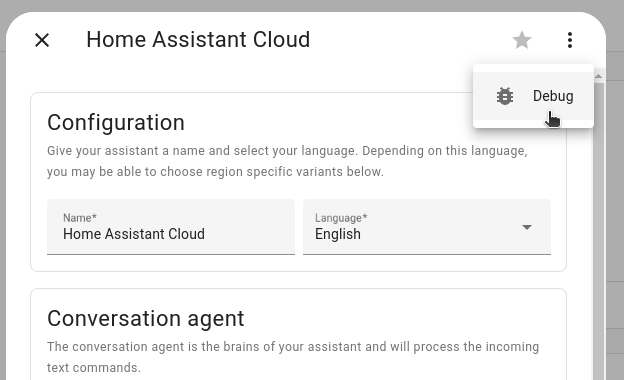
- At the top of the page, select the run you’re interested in.
- The list shows the date and time of each run. To step through the runs, select Older run
or Newer run . - Result: The page shows each stage of the run, such as speech-to-text, natural language processing, and text-to-speech.
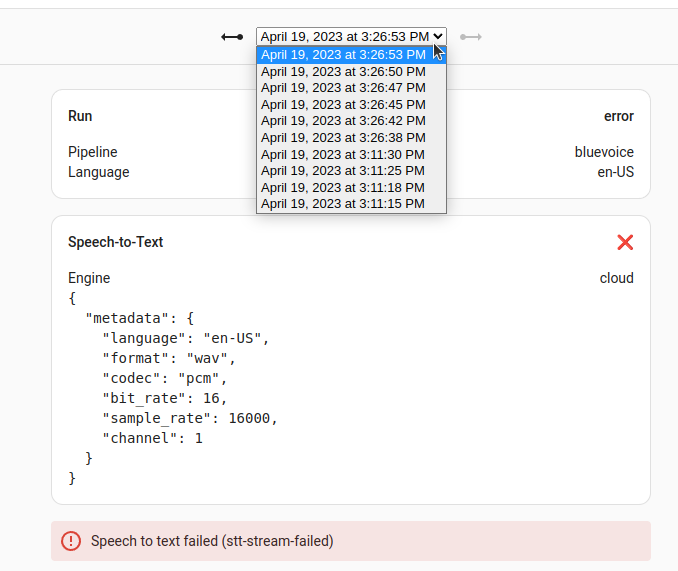
- The list shows the date and time of each run. To step through the runs, select Older run
If the page says No runs found, the assistant didn’t receive anything. Check that your device or the Assist dialog uses this assistant.
Test a sentence per language without voice: without executing commands
If you want to test if a sentence works in a specific language without actually executing the commands, use the sentence parser in Tools.
- Go to Settings > Tools > Assist.
- In the sentence parser, select the language and enter the sentence you want to test.
- The debug tool shows you the following:
- The intent triggered.
- The entities that were targeted.
- Which of the targeted entities were matched.
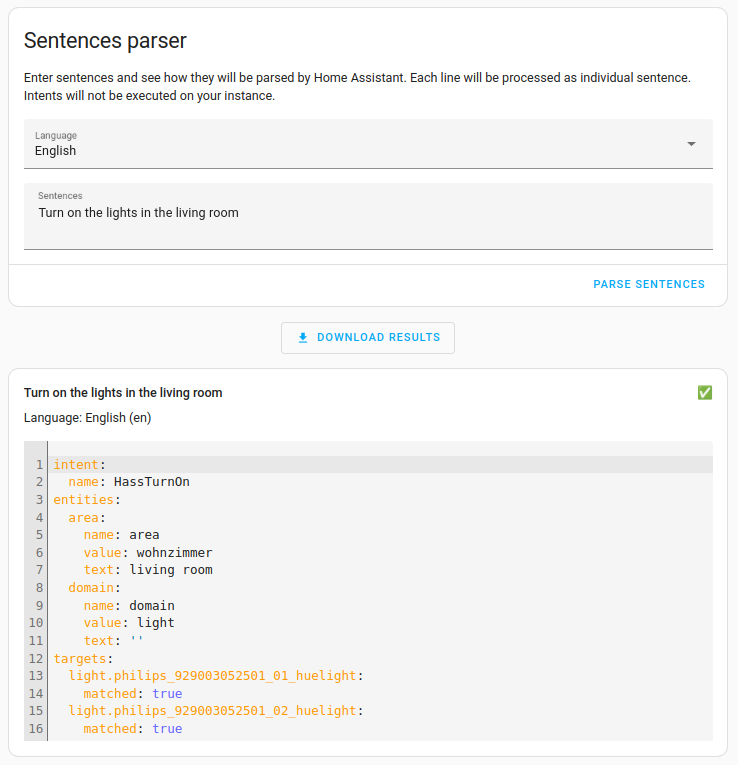
Testing a sentence with an assistant
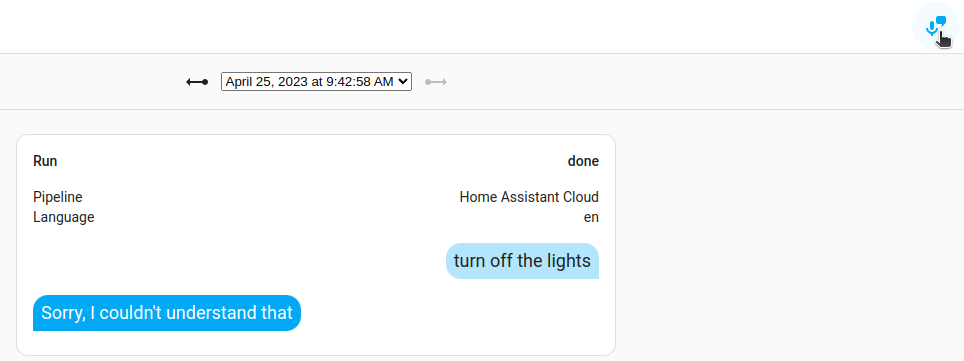
To test a sentence with a specific assistant and its conversation agent, run it from the debug view. Unlike the sentence parser, this runs the command. For example, if you test “Turn on the kitchen light”, the kitchen light turns on.
- Open the debug information of your assistant.
- In the upper-right corner, select Start debug run
. 
- Select the assistant you want to test.
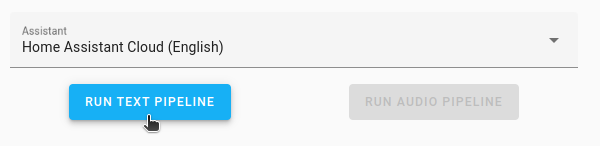
- Select Run text pipeline.
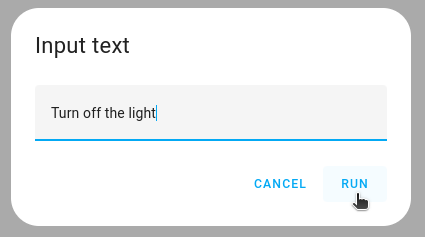
- Under Input text, enter the sentence you want to test, and select Run.
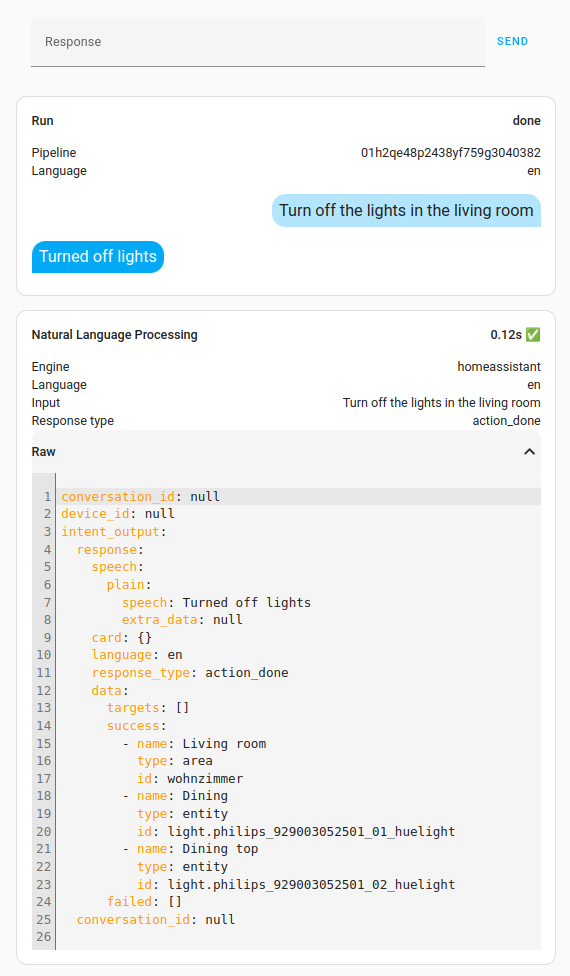
- Check the result.
- Result: You see each stage of the run, including the response of the assistant.
- To continue the conversation, enter your reply under Response, and select Send.
If the sentence doesn’t work, try the following:
- Try a variant of the sentence. For example, if “Turn off the light” doesn’t work, try “Turn off the lights in the kitchen”.
- If your assistant uses the built-in Home Assistant conversation agent, check if the sentence is supported by the built-in sentences.
- Use the names of your entities and areas exactly as they’re defined in Home Assistant. For example, if your area is called “Bathroom”, the sentence “Turn on the lights in the bath” doesn’t work. To use other names, add aliases.
I do not see any assistant
If under Settings > Voice assistants you do not see any assistants, you are not using the default configuration. The image below shows the Assist section.
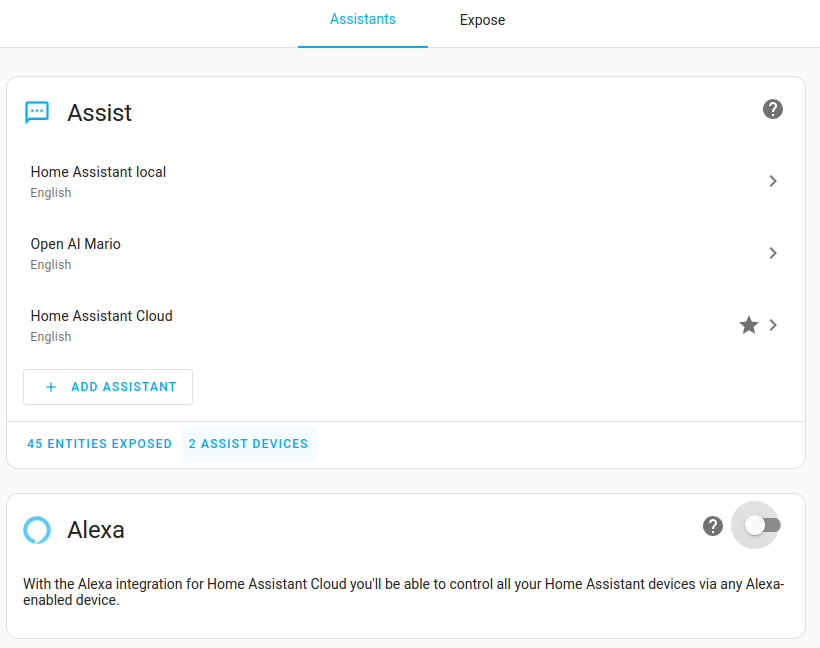
If the Assist section is missing entirely, you need to add the following to your configuration.yaml file:
# Example configuration.yaml entry
assist_pipeline:
I do not see a text-to-speech or speech-to-text option
If a text-to-speech or speech-to-text service is missing from the options of your assistant, its entity may be disabled. Home Assistant does not offer a disabled entity as an option. This can also happen with Home Assistant Cloud, for example with the entities tts.home_assistant_cloud and stt.home_assistant_cloud.
- Go to Settings > Devices & services > Entities.
- In Filters, under Status, select Disabled.
- Look for the
ttsorsttentity of the service. If it is there, enable it.
Assist does not understand my question about the weather forecast
The example below shows common pitfalls when enquiring about the weather. While some steps are specific to the weather, the general mechanics apply to other entities as well.
-
Make sure you have a weather service installed.
- By default, Met.no is installed.
-
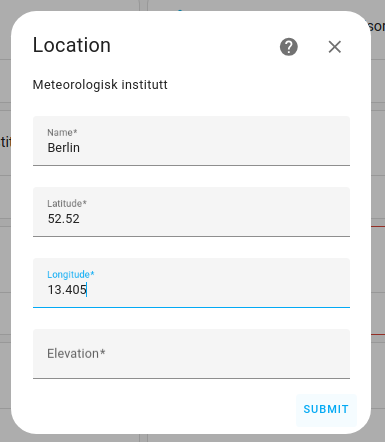
Make sure you have an entity set up for the location you are interested in.
-
For example, if you are interested in the weather in Berlin, add an entity for Berlin.
-
-
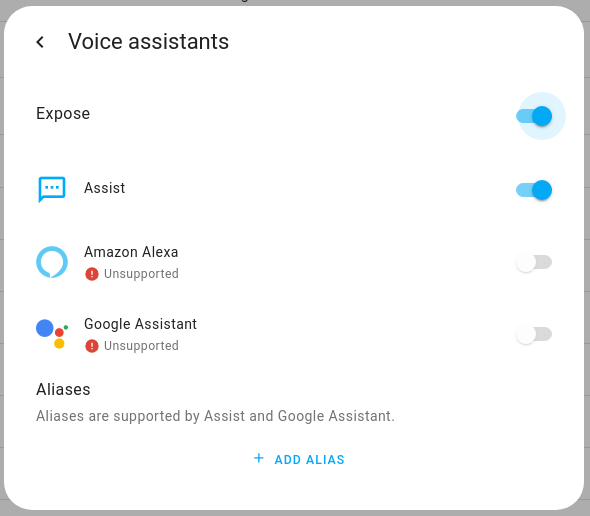
Make sure the entity is exposed to Assist:
-
Under Settings > Devices & services > Entities, select the weather entity for that location.
-
In the details view that opens, select the cogwheel
, then select Voice Assistant. 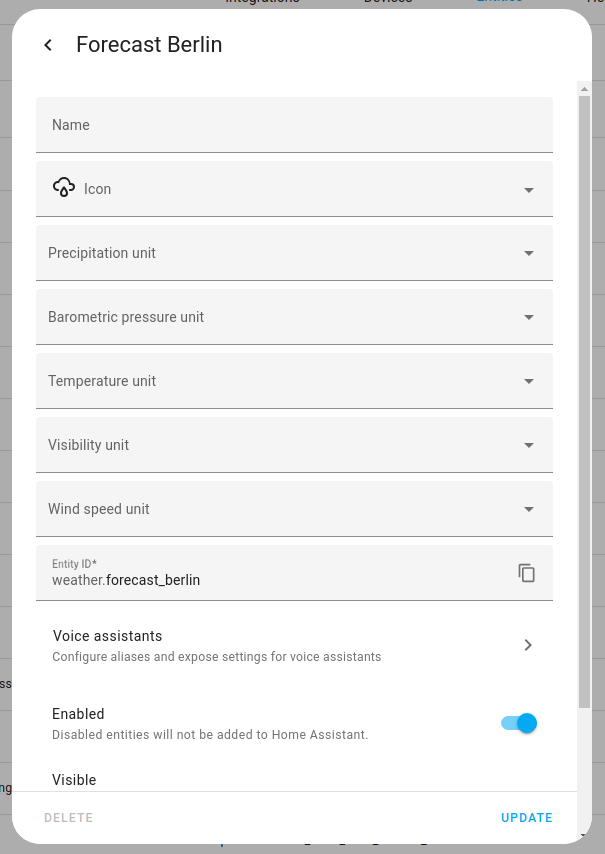
-
Make sure the entity is exposed to Assist.
-
-
Make sure you use the exact entity name when talking to Assist.
-
To view the entity name, check the list under Settings > Devices & services > Entities.
-
For example, if the entity is called Forecast Berlin, you have to say “What is the weather in forecast Berlin like”.
-
Assist would not recognize it if you ask “What is the weather in Berlin like”.
-
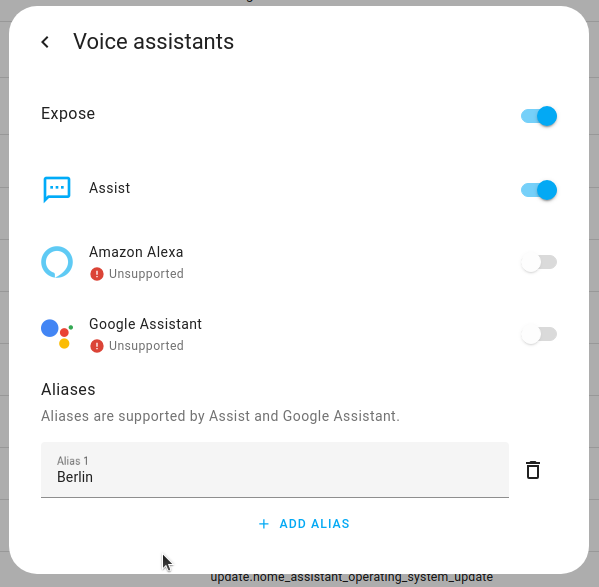
If you want to use Berlin instead of Forecast Berlin, you can create an entity name alias.
- You can create as many aliases as you like.
-
-
If you just ask “What is the weather” when you have forecast entities for multiple entities, Assist always returns the data for the place that was first added. Currently, there is no way to change that.
I don’t get a voice response
My voice assistant understands me and processes the command, but I don’t get a voice response.
The voice response is generated in Home Assistant by one of our supported text-to-speech (or TTSTechnology that turns text into spoken words. Assist uses text-to-speech to reply out loud. Home Assistant can also use it to make announcements on media players and voice satellites. Integrations provide text-to-speech. Some run locally, and others run in the cloud. [Learn more]) engines. The voice assistant device then fetches the audio file from Home Assistant and plays it back.
Local Network Settings
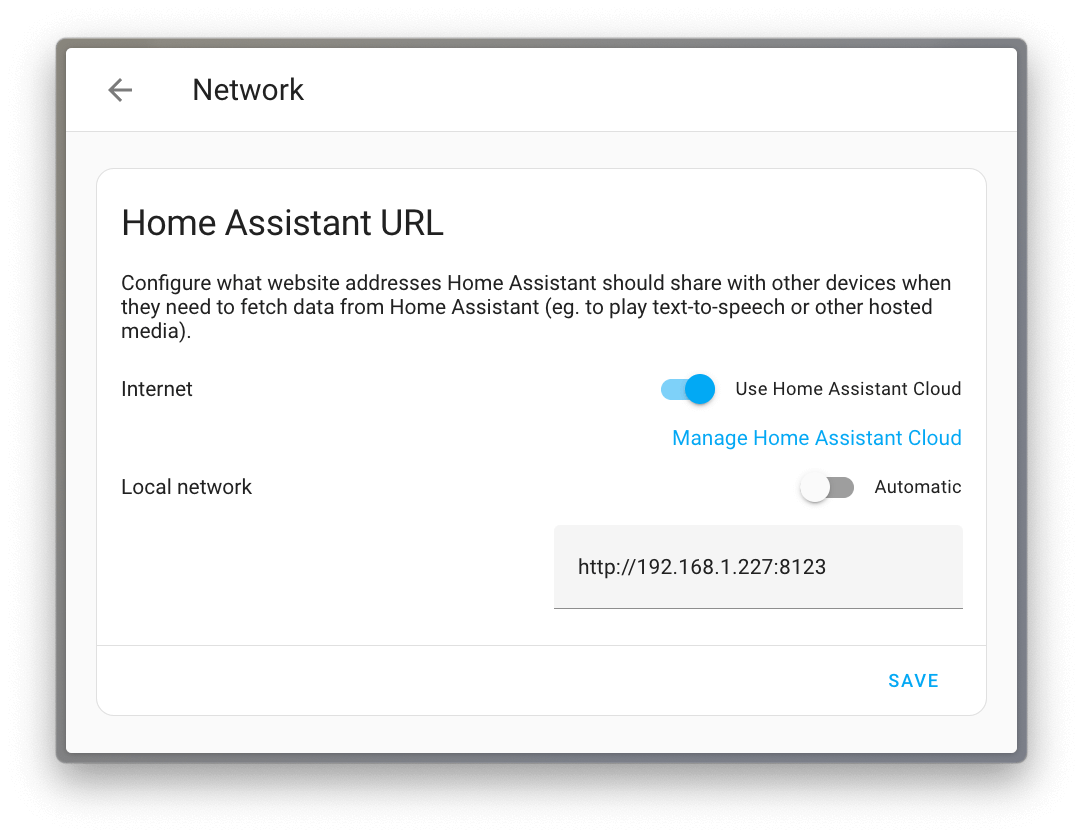
For this fetching process to work, Home Assistant must communicate its own URL to the device. If you have a complex network setup, or if you changed this setting in the past, the URL communicated could be wrong.
To fix the URL, follow these steps:
- Go to Settings > System > Network.
- Change your Local Network Home Assistant URL to a URL that can be reached locally and that points to Home Assistant
- For most users, the Automatic option works and is recommended.
Missing Media Source
If you are using YAML configuration and do not have default_config: make sure media_source: is present.