

Aliases - entity, area, and floor
Assist uses the names of your entities, areas, and floors, as well as any aliases you’ve configured. If you have set up Google Assistant or Amazon Alexa, they use the first alias of an entity as its name. Google Assistant also uses the other aliases as alternatives.
These aliases are helpful in case you call the same device by multiple names or when using a voice assistant in multiple languages at the same time.
Adding an alias of an entity
- Open the dialog of the entity.
- For example, select the entity on a dashboard. Or go to Settings > Devices & services > Entities and select the entity.
- In the upper-right corner of the dialog, select Settings
. - Select Voice assistants.
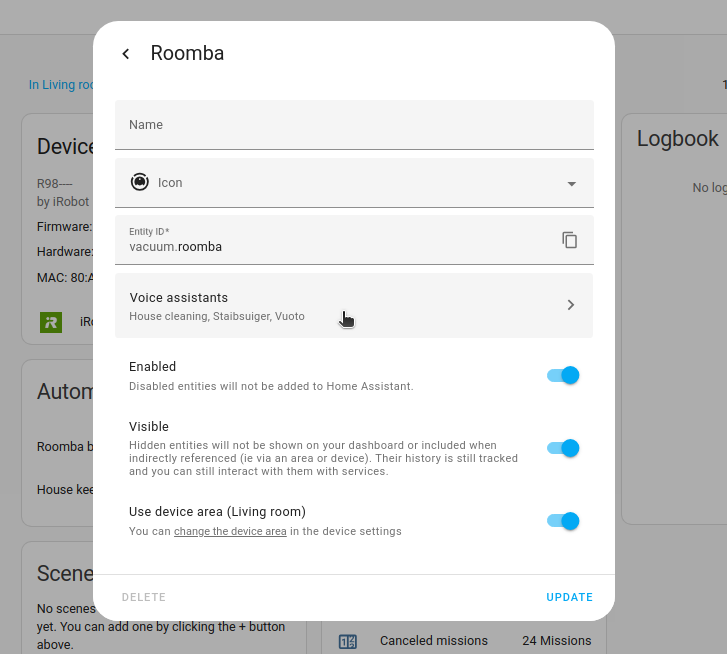
- Under Aliases, select Add alias, and enter the alias.
- To add more aliases, repeat this step.
- Result: Home Assistant saves the alias when you leave the field.
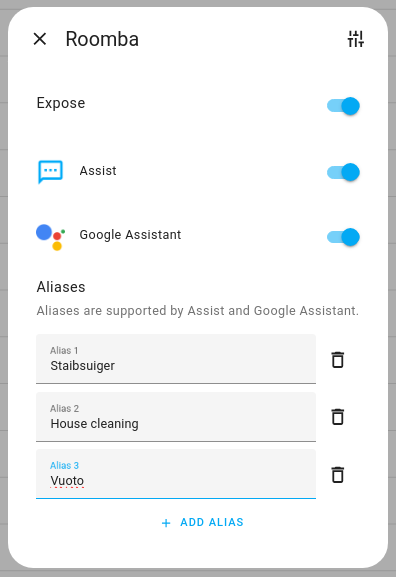
If the entity is already exposed to a voice assistant, you can also start from the Expose tab. Go to Settings > Voice assistants. On the Expose tab, select the entity. The same settings open, with the Aliases list.
Default name and the order of aliases
The Aliases list starts with the default name of the entity, such as Coffee machine Power.
When the switch next to it is turned on, the default name is used as the first alias.
The order matters for some voice assistants:
- Assist uses all aliases equally.
- Google Assistant uses the first alias as the main name and the others as alternatives.
- Amazon Alexa uses only the first alias.
Renaming an entity, its device, or its area doesn’t change the aliases you added. Only the default name in the list follows the new name.
Using a different name for voice assistants
Voice assistants don’t have to use the name that Home Assistant shows. For example, you might want Amazon Alexa to call a device Kitchen light, while Home Assistant shows it as Ceiling light.
- Add the name you want as an alias of the entity.
- In the Aliases list, turn off the switch next to the default name.
- Drag your alias to the top of the list.
- Result: Voice assistants that use the first alias, such as Amazon Alexa, now use your alias as the name of the entity.
Adding an alias of an area
- To add an alias for an area, go to Settings > Areas, labels & zones.
- On the area card of interest, select the pencil button.
- Select Add alias and enter the alias you want to use for that area.
- Save your changes.
Adding an alias of a floor
- To add an alias for a floor, go to Settings > Areas, labels & zones.
- Next to the floor of interest, select the three dots
, then select Edit floor. - Select Add alias and enter the alias you want to use for that floor.
- Save your changes.
Area-less aliases for entities with an assigned area
Assist can infer the area from the satellite you’re talking to, and it can also take the area from your sentence.
That’s why entity names don’t need to include the area, as described in the naming recommendations.
If an entity name includes the area, such as Living room lamp, add a simplified alias, such as Lamp.
This allows you to say “turn on the lamp in the living room”, or simply “turn on the lamp” when asking a satellite in the living room.
Don’t worry if you also have a Bedroom lamp. You can alias that one Lamp as well, as it would get matched only when in conjunction with the area name (Living room or Bedroom).