OneDrive for Business
The OneDrive for Business integrationIntegrations connect and integrate Home Assistant with your devices, services, and more. [Learn more] allows you to use OneDrive for Business for Home Assistant Backups.
Backup encryption is enabled by default and can be disabled as shown in the backup documentation.
Configuration
To add the OneDrive for Business service to your Home Assistant instance, use this My button:

If the above My button doesn’t work, you can also perform the following steps manually:
-
Browse to your Home Assistant instance.
-
In the bottom right corner, select the
Add Integration button. -
From the list, select OneDrive for Business.
-
Follow the instructions on screen to complete the setup.
Options
To define options for OneDrive for Business, follow these steps:
-
In Home Assistant, go to Settings > Devices & services.
-
If multiple instances of OneDrive for Business are configured, choose the instance you want to configure.
-
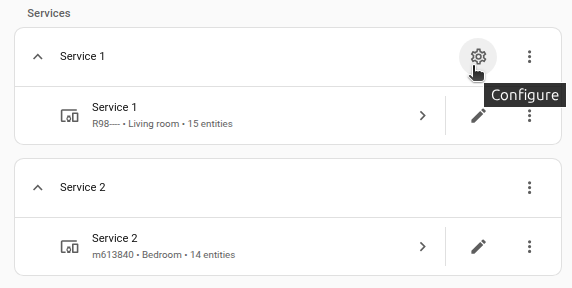
On the card, select the cogwheel
. - If the card does not have a cogwheel, the integration does not support options for this service.
-
Edit the options, then select Submit to save the changes.
Requested permissions by the integration
The integration will request the following permissions on your OneDrive for the integration to work:
-
Files.ReadWrite.All: Grants the application permission to read and write in any folder of your OneDrive. Unfortunately, unlike the personal OneDrive, OneDrive for Business does not support theFiles.ReadWrite.AppFolderpermissions, so these are the least possible permissions. -
offline_access: Grants the application permission to refresh its authentication token without requiring your manual intervention. -
openid: Grants the application permission to read basic information, for example, if you have a OneDrive.
Getting application credentials
You’ll need to follow this guide by Microsoft on registering an application to create your own client ID and secret.
Make sure to configure the following settings on the app registration:
-
Supported account types: Choose one of
Accounts in this organizational directory only(recommended),Accounts in any organizational directory,Accounts in any organizational directory (Any Microsoft Entra ID tenant - Multitenant) and personal Microsoft accounts -
Redirect URI: Type:
Web, URL:https://my.home-assistant.io/redirect/oauth
Sensors
The integration provides the following sensors, which are updated every 5 minutes:
- Total available storage: The total size of your drive (disabled by default).
- Used storage: The amount of storage you have used up.
- Remaining storage: The amount of storage that is left in your drive.
-
Drive state: Calculated state of your drive, based on the storage left. Possible values:
Normal,Nearing limit,Critical,Exceeded.
A drive in Drive state Exceeded will be automatically frozen (meaning you can’t upload any more backups & files) until you free up enough storage.
Troubleshooting
Currently we don’t have any known troubleshooting steps, if you find something please create a documentation PR. Thanks!
Removing the integration
This integration follows standard integration removal. No extra steps are required.
To remove an integration instance from Home Assistant
- Go to Settings > Devices & services and select the integration card.
- From the list of devices, select the integration instance you want to remove.
- Next to the entry, select the three dots
menu. Then, select Delete.