

NeoPool
The NeoPool integrationIntegrations connect and integrate Home Assistant with your devices, services, and more. [Learn more] integrates pool controllers built around the NeoPool control system (originally developed by Sugar Valley, acquired by Hayward in 2016) with Home Assistant. It communicates entirely locally over Modbus TCP, providing real-time monitoring of water chemistry, filtration, and hydrolysis without any cloud dependency.
The same control system is sold under many brand names worldwide, including Hidrolife, Aquascenic, Oxilife, Bionet, Hidroniser, UVScenic, Station, and Aquarite, distributed by Hayward, Brilix (Albixon), Bayrol, Certikin, Poolstar, GrupAquadirect, Pentair, ProducPool, Pool Technologie, Kripsol, and others.
VistaPool is the name of Hayward’s mobile/web app for cloud-based pool management. The NeoPool integration works entirely locally via Modbus and does not require or use the VistaPool app or any cloud service. If you prefer to use the cloud API instead, see the Vistapool integration.
Use cases
The NeoPool integration brings your pool controller into Home Assistant, providing comprehensive data and control capabilities. Which entities appear depends on which modules and options the controller reports; unavailable ones are hidden automatically.
- Monitor water chemistry: track pH, Redox/ORP, free chlorine, conductivity, and water temperature.
- Monitor hydrolysis/electrolysis: read current production intensity, cell voltage, polarity state, and cell wear counters.
- Monitor ionization: read the current ionization level and polarity.
- Monitor filtration: read the current mode, variable-speed percentage, and Intelligent-mode scheduling data.
- Track backwash cycles: read the remaining time when a Besgo automatic filter valve is running a cycle.
- Surface pool-controller problems: expose alarm states as sensor readings, and raise a repair issue if the controller’s GPIO configuration register becomes corrupted.
- Control the pool light: turn the pool light relay on and off when the relay timer is in a manual mode. Opt-in through the integration options.
- Control filtration and relays: run the filtration pump manually, start and stop backwash, drive the auxiliary relays, and toggle the controller’s configuration flags.
Supported devices
The integration supports any pool controller built on the NeoPool / Sugar Valley platform that exposes the standard Modbus register set, including:
- Hayward: Aquarite (with NeoPool option), Hidroniser, UVScenic, Station
- Sugar Valley: Hidrolife, Aquascenic, Oxilife, Bionet
- Brilix (Albixon), Bayrol, Certikin, Poolstar, GrupAquadirect, Pentair, ProducPool, Pool Technologie, Kripsol, and other regional rebrands of the same control system
The Modbus protocol implemented here follows the official NeoPool Control System MODBUS Register description documentation by Sugar Valley.
Prerequisites
Before setting up the NeoPool integration, make sure:
-
Your NeoPool controller is connected to a Modbus TCP gateway (any RS-485 to TCP converter, such as the USR-DR164) on your home network.
-
The gateway is configured for 19200 baud, 1 stop bit, no parity, Modbus RTU.
-
You know the hostname or IP address and TCP port of the gateway.
-
The RS-485 wiring is connected to the controller’s
WIFIorEXTERNALport (do not useDISPLAYunless the internal LCD is disconnected). The pinout (top to bottom) is:. ___ 1 |* |– +12V (from internal power supply) 2 |* |– NC (not connected) 3 |* |– Modbus A+ 4 |* |– Modbus B- 5 |*__|– GNDThe connector is a standard 2.54 mm 5-pin PCB female header.
The NeoPool device acts as a Modbus server. This integration is a Modbus client. Only one Modbus client can be connected to a given Modbus connector at a time.
Configuration
To add the NeoPool hub to your Home Assistant instance, use this My button:

If the above My button doesn’t work, you can also perform the following steps manually:
-
Browse to your Home Assistant instance.
-
In the bottom right corner, select the
Add Integration button. -
From the list, select NeoPool.
-
Follow the instructions on screen to complete the setup.
Configuration parameters
The hostname or IP address of your Modbus TCP gateway, for example 192.168.1.50 or pool-gateway.local.
Options
To define options for NeoPool, follow these steps:
-
In Home Assistant, go to Settings > Devices & services.
-
If multiple instances of NeoPool are configured, choose the instance you want to configure.
-
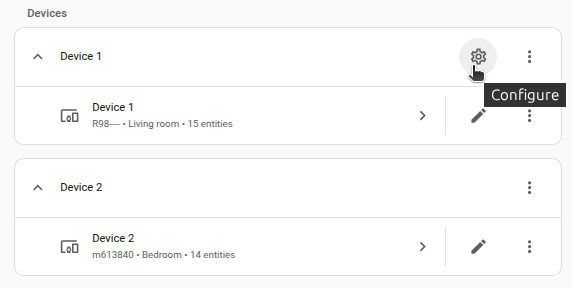
On the card, select the cogwheel
. - If the card does not have a cogwheel, the integration does not support options for this device.
-
Edit the options, then select Submit to save the changes.
Turn on if your pool controller has a pool light wired to the lighting relay. When enabled, a Pool light entity is added so you can switch the light from Home Assistant. Off by default because the controller cannot detect whether a physical light is wired to the relay.
Turn on for each auxiliary relay you have wired to a device. When enabled, an Auxiliary relay switch is added for that relay. Off by default because the controller cannot detect what, if anything, is wired to each auxiliary relay.
Supported functionality
The integration exposes the controller’s runtime state as sensor and binary sensor entities, plus an optional light entity for the pool light relay. It also adds number entities for the controller’s writable setpoints and configuration values, switch entities for filtration, backwash, the auxiliary relays, and the controller’s configuration flags, time entities for the daily timer schedules, and button entities for device maintenance actions.
Only entities backed by a detected hardware module or an enabled controller option are registered. The rest stay hidden until the module or option becomes available. Each bullet below lists the specific requirement for that entity.
Binary sensors
- Relay states: the on/off state of each controller relay, including the filtration pump, pH acid pump, pool light, and auxiliary relays 1 to 4. The pool light and auxiliary relay states are added when the matching integration option is enabled.
- Module status: whether the pH, Redox, chlorine, and conductivity modules are actively measuring or regulating, and whether their dosing pumps are running. Added when the corresponding module is present. Most of these are diagnostic and disabled by default.
- Hydrolysis status: whether the hydrolysis module is enabled, regulating, in chlorine shock (boost) mode, or activated by the Redox or chlorine module. Added when the hydrolysis module is present.
- Problem indicators: hydrolysis and ionization production problems, a chlorine flow sensor problem, and an ionization program time exceeded state. Added when the corresponding module is present.
-
Pool cover: whether the pool cover is open. Reads
unknownunless filtration is running, since the controller only reports a valid cover state then. Added when the cover sensor is enabled in the integration options. - Heating and UV lamp: whether the heating relay or UV lamp is on. Added when the controller reports the corresponding relay.
Buttons
- Synchronize device time: Writes Home Assistant’s current time to the controller’s clock.
- Clear error messages: Clears the controller’s active error and alarm messages.
- Reset cell runtime counter: Resets the partial cell-runtime counter used to track electrolytic cell wear. Added when the hydrolysis module is present. This button is a configuration entity and is disabled by default, because it clears a wear counter you may want to keep.
Light
- Pool light: switches the pool light relay on and off. Added when the pool light relay is enabled in the integration options, and the controller has a lighting relay configured. The entity state reflects the relay’s actual state, regardless of whether the relay is in automatic or manual mode. Turning the light on or off is only possible when the light timer is set to manual mode. If the timer is in automatic mode, Home Assistant shows an error and does not change the relay, so it does not override the schedule. Change the timer mode to manual on the controller itself to control the light directly.
Switches
- Filtration: Runs the filtration pump on or off. The entity state reflects the actual pump state, regardless of whether filtration is in automatic or manual mode. Turning it on or off is only possible while the controller is in manual filtration mode. If it is in another mode, or a hydrolysis boost is active, Home Assistant shows an error and does not change the pump, so it does not override the controller.
- Backwash: Starts a backwash cycle for the configured duration, or stops a running one. The entity state reflects the remaining cycle time. Added when a Besgo automatic filter valve is configured. Backwash cannot be started while the filter valve is in an automatic mode.
- Auxiliary relays 1 to 4: Switches an auxiliary relay on and off. Added for each auxiliary relay enabled in the integration options. Like the pool light, an auxiliary relay can only be switched while its timer is in a manual mode.
- Configuration flags: Toggles controller settings such as the climate mode for heating, UV mode, smart antifreeze, and hydrolysis shutdown on high temperature. Each flag is added when the controller reports the corresponding module.
- Enable cover reduction: Toggles the cover-driven hydrolysis reduction. Added when the cover sensor is enabled in the integration options and the controller has a hydrolysis module.
Numbers
- pH minimum and pH maximum: the low and high pH regulation setpoints. Added when the pH module is present and the controller reports a valid dosing relay for that setpoint (a base relay for pH minimum, an acid relay for pH maximum).
- Redox/ORP setpoint: the target oxidation-reduction potential in mV. Added when the Redox module is present.
- Free chlorine setpoint: the target free chlorine concentration. Added when the chlorine module is present.
- Hydrolysis target production level: the target production level for the electrolytic cell. Added when the hydrolysis module is present. The maximum, unit, and step follow the controller: a percentage when it reports production in percent, or g/h when it reports a nominal production rate.
- Heating setpoint: the target water temperature for the heating relay. Added when the controller has a heating relay and a temperature sensor.
- Smart minimum temperature and smart maximum temperature: the low and high water temperatures that bound Smart filtration mode. Added when a temperature sensor is present.
- Cover reduction: the percentage by which hydrolysis production is reduced while the pool cover is closed. Added when the cover sensor is enabled in the integration options and the controller has a hydrolysis module.
- Hydrolysis shutdown temperature: the water temperature below which hydrolysis stops. Added when the cover sensor is enabled in the integration options and the controller has a hydrolysis module and a temperature sensor.
Sensors
- Water temperature: current pool water temperature (when the temperature sensor is present).
- pH: measured pH level (when the pH module is present).
- Redox/ORP: measured oxidation-reduction potential in mV (when the Redox module is present).
- Free chlorine: measured chlorine concentration (when the chlorine module is present).
- Conductivity: measured water conductivity (when the conductivity module is present).
- pH pump status: current state of the pH dosing pump (off, idle, acid pump, base pump, both pumps) (when the pH module is present).
- pH alarm: latched pH-regulation alarm state (when the pH module is present).
- Hydrolysis intensity: current production level in % (when the hydrolysis module is present).
- Hydrolysis voltage: current cell voltage (when the hydrolysis module is present; diagnostic, disabled by default).
- Hydrolysis polarity: current polarity of the electrolytic cell (when the hydrolysis module is present).
- Ionization intensity: current ionization level (when the ionization module is present).
- Ionization polarity: current polarity of the ionization electrodes (when the ionization module is present).
- Filtration mode: current mode reported by the controller (Manual, Auto, Heating, Smart, Intelligent, Backwash).
- Filtration speed: current variable-speed filtration percentage (when the controller reports a variable-speed pump).
- Intelligent-mode intervals and time to next interval: scheduling data for Intelligent mode (when a heating relay and temperature sensor are configured).
- Backwash remaining: time remaining in the active backwash cycle (when a Besgo automatic filter valve is configured).
- Cell runtime counters: five diagnostic counters tracking wear on the electrolytic cell (when the hydrolysis module is present), total runtime, runtime since last reset, runtime in polarity 1 and 2, and polarity-change count. All five are diagnostic and disabled by default; enable them in the entity registry if you want to track cell wear over time.
Times
The controller stores a daily start and stop time for each of its timer blocks. These entities let you read and change that schedule from Home Assistant. Setting a value writes it back to the controller. The controller only follows a timer’s schedule while the matching filtration or relay is in an automatic mode. In a manual mode the schedule is ignored, but the times remain readable and editable.
- Filtration timers 1 to 3: the start and stop times of the three filtration schedules. The first timer’s entities are enabled by default. The second and third timers’ entities are disabled by default because most pools use a single schedule. Enable them in the entity registry if your controller uses more than one.
- Auxiliary relay timers 1 to 4: the start and stop times of each auxiliary relay’s schedule. Added for each auxiliary relay enabled in the integration options. Each relay has a second schedule whose entities are disabled by default. Enable them in the entity registry if you use the relay’s second daily period.
- Pool light timer: the start and stop times of the pool light schedule. Added when the pool light relay is enabled in the integration options.
List of actions
The NeoPool integrationIntegrations connect and integrate Home Assistant with your devices, services, and more. [Learn more] provides the following actions. Each link below opens a dedicated page with examples, parameters, and a step-by-step UI walkthrough.
-
Get device time (
neopool.get_device_time) Reads the controller’s real-time clock and reports its drift from Home Assistant. -
Set device time (
neopool.set_device_time) Writes the current Home Assistant time to the controller’s real-time clock.
For an overview of every action across all integrations, see the actions reference.
The action that changes the controller (Set device time) requires a Home Assistant administrator account. The read-only action (Get device time) is available to any user.
NeoPool automation examples
The actions let you keep the controller in step with Home Assistant. Here is an example to get you started.
You don’t need to edit YAML to use these examples. Copy a YAML snippet from this page, open the visual automation editor in Home Assistant, and press Ctrl+V (or Cmd+V on Mac). Home Assistant automatically converts the pasted YAML into the visual editor format, whether it’s a full automation, a single trigger, a condition, or an action.
Automation: Keep the controller clock in sync
The controller’s real-time clock can drift over time. Instead of a fixed daily overwrite, this automation checks the drift once an hour and only corrects the clock when it exceeds a threshold you choose. The neopool.get_device_time action returns the drift, and the automation acts on it.
YAML example for keeping the clock in sync
alias: "NeoPool - keep the controller clock in sync"
triggers:
  - trigger: time_pattern
    hours: "/1"
actions:
  - action: neopool.get_device_time
    data:
      device_id: abc123device456
    response_variable: pool_time
  - if:
      - condition: template
        value_template: "{{ pool_time.drift_seconds | abs > 120 }}"
    then:
      - action: neopool.set_device_time
        data:
          device_id: abc123device456
Replace abc123device456 with the device ID of your controller. If you only have one NeoPool controller, you can leave the device_id out of both actions. Raise or lower the 120 in the template to change how much drift you tolerate before the clock is corrected.
Data updates
The integration pollsData polling is the process of querying a device or service at regular intervals to check for updates or retrieve data. By defining a custom polling interval, you can control how frequently your system checks for new data, which can help optimize performance and reduce unnecessary network traffic. [Learn more] the controller over Modbus TCP at a fixed interval. To stay responsive, the integration reads data from the controller in as few requests as possible per update cycle.
If a poll cycle fails (for example, because the Modbus gateway becomes unreachable), all entities transition to unavailable until the next successful poll.
Reconfigure
If your Modbus TCP gateway moves to a different IP address or port, or you need to change the unit ID or Modbus framer, you can update the connection settings without removing and re-adding the integration:
- Go to Settings > Devices & services.
- Select the NeoPool integration.
- Open the three-dot
menu, then select Reconfigure. - Update the settings and submit the form.
The integration verifies the new settings against the controller before saving. If the device reached at the new address reports a different serial number than the one originally configured, the reconfiguration is rejected to prevent pointing the entry at a different controller.
Diagnostics
This integration provides diagnostic information to help with troubleshooting. To download the diagnostics data:
- Go to Settings > Devices & services.
- Select the NeoPool integration.
- Open the three-dot
menu and select Download diagnostics.
The downloaded file includes the config entry, the latest data read from the controller, and connection statistics. Sensitive values such as the host, port, and the controller’s serial number are redacted and appear as **REDACTED**.
Known limitations
- Discovery is not supported. Modbus TCP gateways do not expose a standard discovery protocol that uniquely identifies a NeoPool controller behind the gateway, so the integration must be configured manually.
- One controller per config entry. Multiple physical controllers are supported, but each one needs its own config entry.
- Authentication is not used. Modbus TCP itself has no authentication mechanism; the integration relies on network isolation between Home Assistant and the gateway. The gateway should not be exposed to untrusted networks.
- The DISPLAY connector is reserved. The NeoPool controller exposes the same protocol on its
DISPLAYconnector as onWIFI/EXTERNAL, but the built-in LCD usually occupies it. Connecting toDISPLAYwhile the LCD is attached will result in collisions. - Variable-speed pump support depends on the controller firmware. The Filtration speed entity is registered only when the controller reports a variable-speed pump.
- The pool light entity is opt-in. The controller does not report whether a physical light is wired to its lighting relay, so the entity is only registered after you enable it in the integration options.
- The pool light cannot be controlled while its timer is in an automatic mode. Set the light timer to a manual mode first to turn the light on or off from Home Assistant.
- The auxiliary relay and cover reduction switches are opt-in. The controller does not report what is wired to each auxiliary relay or whether a cover sensor is present, so these switches are only registered after you enable them in the integration options.
- Filtration and auxiliary relays can only be switched in a manual mode. Set the controller or the relay timer to a manual mode first. When it is in an automatic mode, Home Assistant shows an error rather than overriding the schedule.
Troubleshooting
Cannot connect during setup
Symptom: “Cannot connect” during the initial config flow
When trying to set up the integration, the form shows the message Cannot connect or Cannot read Modbus.
Description
The integration could reach the network address but did not receive a valid Modbus reply within the timeout, or the gateway refused the TCP connection altogether.
Resolution
- Verify the Modbus TCP gateway is reachable from Home Assistant by pinging the gateway IP.
- Confirm the gateway is configured for 19200 baud, 1 stop bit, no parity (Modbus RTU).
- Check the RS-485 wiring (A+ / B− / GND) and that the connector is plugged into
WIFIorEXTERNAL, notDISPLAY(when the LCD is connected). - Make sure the unit ID matches the controller’s configured Modbus address (default
1).
All entities went unavailable suddenly
Symptom: every NeoPool entity is unavailable at the same time
All entities provided by the integration become unavailable simultaneously, often after a network change or gateway restart.
Description
The integration has lost contact with the Modbus gateway. Entities recover automatically on the next successful poll after connectivity is restored.
Resolution
If entities stay unavailable for more than a few minutes:
- Check the Home Assistant logs for
neopoolerrors. - Power-cycle the Modbus gateway.
- Verify nothing else on the network has taken over the same TCP connection (only one Modbus client per gateway port at a time).
Repair issue: “Corrupted GPIO register”
Symptom: a repair issue is created with the message “Corrupted GPIO register”
The integration raises a repair issue shortly after setup or after a controller restart.
Description
The integration detected a known-bad value in the controller’s GPIO configuration register. This usually points at a relay configuration that was partially written or lost across firmware updates.
Resolution
Follow the steps in the repair flow to acknowledge or fix the condition. The issue clears automatically once the register reads a valid value again.
Removing the integration
This integration follows standard integration removal.
To remove an integration instance from Home Assistant
- Go to Settings > Devices & services and select the integration card.
- Next to the entry you want to remove, select the three dots
menu. Then, select Delete. - Depending on the integration, the entries are listed under one of the following headings:
- Devices
- Hubs
- Services
- Integration entries
- Depending on the integration, the entries are listed under one of the following headings:
- To confirm, select Delete.
- Home Assistant also deletes the devices and entities of the entry.
- If Home Assistant asks you to restart, restart Home Assistant.
- If Home Assistant asks whether to also delete the application credentials, select Remove or Keep.
- If you keep them, Home Assistant uses them automatically when you add the integration again.
- To delete them later, refer to Deleting application credentials.