

Holiday
The Holiday integrationIntegrations connect and integrate Home Assistant with your devices, services, and more. [Learn more] adds a calendarA calendar entity represents a schedule of events coming from a local or external calendar source. It can be used to trigger automations based on the start or end of an event, react to offsets (like 15 minutes before), or retrieve event details through services. [Learn more] with the public holidays for a country, and optionally a region within that country, to Home Assistant. You can use it to view upcoming holidays on your calendar dashboard and to power automations, for example, to keep the blinds closed on public holidays or turn on festive lights on a specific holiday.
The holiday data comes from the holidays library, which covers a large number of countries and their regions. No account or internet connection is needed.
A calendarA calendar entity represents a schedule of events coming from a local or external calendar source. It can be used to trigger automations based on the start or end of an event, react to offsets (like 15 minutes before), or retrieve event details through services. [Learn more] entity has a state and attributes that represent the next upcoming event (only). A calendar trigger is a much more flexible way to power automations with fewer limitations than using the entity state.
Configuration
To add the Holiday integration to your Home Assistant instance, use this My button:

If the above My button doesn’t work, you can also perform the following steps manually:
-
Browse to your Home Assistant instance.
-
In the bottom right corner, select the
Add Integration button. -
From the list, select Holiday.
-
Follow the instructions on screen to complete the setup.
The country to show holidays for. Defaults to the country set in your Home Assistant general settings.
The province, state, or other region of the country. Some regions have extra or different holidays. Only shown if the selected country has regions.
Additional holiday categories to include, such as bank or school holidays. Public holidays are always included. Only shown if the selected country has additional categories. For the categories each country supports, refer to the holidays library.
You can add the integration more than once, for example, to show holidays for several countries or regions. Each combination of country, region, and categories can only be added once.
Options
To define options for Holiday, follow these steps:
-
In Home Assistant, go to Settings > Devices & services.
-
If multiple instances of Holiday are configured, choose the instance you want to configure.
-
On the card, select the cogwheel
. - If the card does not have a cogwheel, the integration does not support options for this device.
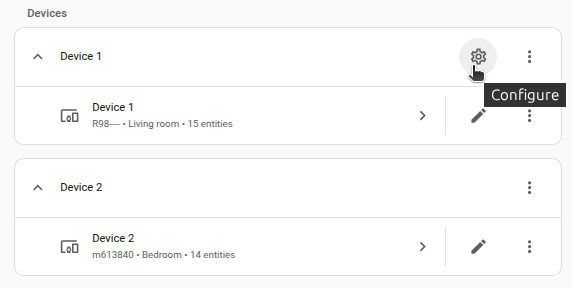
-
Edit the options, then select Submit to save the changes.
To change the province or region of an existing entry, use Reconfigure from the three dots
Holiday calendar automations
Individual holiday Events are what powers automations such as:
- Turn on the Christmas lights at the start of Christmas Day.
- Prevent your covers from being opened on public holidays.
For an overview, refer to calendar automations. You can use calendar trigger variables in a condition or action such as the event summary, description, location and in other places.
Data updates
The holiday data is included in the integration, so no data is fetched from the internet. The calendar updates its state at the start of each day.
Removing the integration
This integration follows standard integration removal. No extra steps are required.
To remove an integration instance from Home Assistant
- Go to Settings > Devices & services and select the integration card.
- Next to the entry you want to remove, select the three dots
menu. Then, select Delete. - Depending on the integration, the entries are listed under one of the following headings:
- Devices
- Hubs
- Services
- Integration entries
- Depending on the integration, the entries are listed under one of the following headings:
- To confirm, select Delete.
- Home Assistant also deletes the devices and entities of the entry.
- If Home Assistant asks you to restart, restart Home Assistant.
- If Home Assistant asks whether to also delete the application credentials, select Remove or Keep.
- If you keep them, Home Assistant uses them automatically when you add the integration again.
- To delete them later, refer to Deleting application credentials.