

Brother Printer
The Brother Printer integrationIntegrations connect and integrate Home Assistant with your devices, services, and more. [Learn more] allows you to read current data from your local Brother printer.
It provides information about the printer’s state, the amount of ink or toner left, and the remaining lifetime of the drum and other parts of the printer. The integration monitors every supported part.
Supported devices
The integration supports Brother printers that expose their status over SNMP. Both ink and laser printers are supported.
Unsupported devices
The following devices are not supported by the integration:
- MFC-8660DN
- MFC-8860DN
Prerequisites
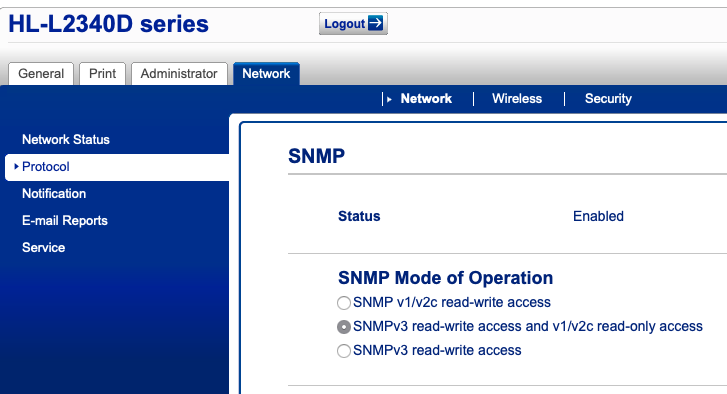
The integration reads data from the printer over SNMP, so SNMP must be turned on in the printer.
- Open the printer’s web interface in a browser, for example
http://192.168.5.6. - If the web interface asks for a password, sign in. For some printers, the default password is printed on a sticker on the back of the printer, preceded by Pwd. If there is no password on the sticker, the default password is
initpass. - Go to Network > Protocol and turn on SNMP.
- For some printers, you also need to select SNMPv3 read-write access and v1/v2c read-only access in the SNMP settings.
Configuration
To add the Brother Printer device to your Home Assistant instance, use this My button:

Brother Printer can be auto-discovered by Home Assistant. If an instance was found, it will be shown as Discovered. You can then set it up right away.
If it wasn’t discovered automatically, don’t worry! You can set up a manual integration entry:
-
Browse to your Home Assistant instance.
-
In the bottom right corner, select the
Add Integration button. -
From the list, select Brother Printer.
-
Follow the instructions on screen to complete the setup.
Supported functionality
The Brother Printer integration provides the following entities.
Binary sensors
-
Door open
- Description: Printer door is open
-
Input tray empty
- Description: Input tray is empty
- Remarks: This entity is disabled by default
-
Input tray missing
- Description: Input tray is missing
- Remarks: This entity is disabled by default
-
Low ink
- Description: Ink level is low (ink printers only)
-
Low paper
- Description: Paper level is low
- Remarks: This entity is disabled by default
-
Low toner
- Description: Toner level is low (laser printers only)
-
No ink
- Description: Ink is empty (ink printers only)
-
No paper
- Description: Paper is empty
-
No toner
- Description: Toner is empty (laser printers only)
-
Output tray full
- Description: Output tray is full
- Remarks: This entity is disabled by default
-
Output tray near full
- Description: Output tray is almost full
- Remarks: This entity is disabled by default
-
Output tray missing
- Description: Output tray is missing
- Remarks: This entity is disabled by default
-
Paper jam
- Description: Paper is jammed
-
Preventive maintenance overdue
- Description: Preventive maintenance is overdue
- Remarks: This entity is disabled by default
-
Service requested
- Description: Printer requests service
- Remarks: This entity is disabled by default
Sensors
-
Belt unit remaining lifetime
- Description: Remaining lifetime percentage of the belt unit
-
Black drum page counter
- Description: Total number of pages printed with the black drum
-
Black drum remaining lifetime
- Description: Remaining lifetime percentage of the black drum
-
Black drum remaining pages
- Description: Estimated number of pages remaining for the black drum
-
Black ink remaining
- Description: Percentage of black ink remaining
-
Black toner remaining
- Description: Percentage of black toner remaining
-
B/W pages
- Description: Total number of black and white pages printed
-
Color pages
- Description: Total number of color pages printed
-
Cyan drum page counter
- Description: Total number of pages printed with the cyan drum
-
Cyan drum remaining lifetime
- Description: Remaining lifetime percentage of the cyan drum
-
Cyan drum remaining pages
- Description: Estimated number of pages remaining for the cyan drum
-
Cyan ink remaining
- Description: Percentage of cyan ink remaining
-
Cyan toner remaining
- Description: Percentage of cyan toner remaining
-
Device status
- Description: Current device status or condition
-
Drum page counter
- Description: Total number of pages printed using the main drum
-
Drum remaining lifetime
- Description: Remaining lifetime percentage of the main drum
-
Drum remaining pages
- Description: Estimated number of pages remaining for the main drum
-
Duplex unit page counter
- Description: Total number of pages printed using the duplex unit
-
Fuser remaining lifetime
- Description: Remaining lifetime percentage of the fuser unit
-
Ink capture box remaining lifetime
- Description: Remaining lifetime percentage of the ink capture box
-
Laser remaining lifetime
- Description: Remaining lifetime percentage of the laser unit
-
Magenta drum page counter
- Description: Total number of pages printed with the magenta drum
-
Magenta drum remaining lifetime
- Description: Remaining lifetime percentage of the magenta drum
-
Magenta drum remaining pages
- Description: Estimated number of pages remaining for the magenta drum
-
Magenta ink remaining
- Description: Percentage of magenta ink remaining
-
Magenta toner remaining
- Description: Percentage of magenta toner remaining
-
Page counter
- Description: Total number of pages printed by the printer
-
PF Kit 1 remaining lifetime
- Description: Remaining lifetime percentage of paper feed kit 1
-
PF Kit MP remaining lifetime
- Description: Remaining lifetime percentage of multipurpose tray feed kit
-
Printer status
-
Description: Current printer status as a normalized value (
idle,printing,warmup, orother)
-
Description: Current printer status as a normalized value (
-
Status
- Description: Raw printer status text reported by the device
- Remarks: This entity is disabled by default. Replaced by Printer status, which reports a fixed set of states
-
Uptime
- Description: Date and time of the last printer restart
- Remarks: This entity is disabled by default
-
Yellow drum page counter
- Description: Total number of pages printed with the yellow drum
-
Yellow drum remaining lifetime
- Description: Remaining lifetime percentage of the yellow drum
-
Yellow drum remaining pages
- Description: Estimated number of pages remaining for the yellow drum
-
Yellow ink remaining
- Description: Percentage of yellow ink remaining
-
Yellow toner remaining
- Description: Percentage of yellow toner remaining
Not all printer models support all the listed entities. The set of entities depends on the printer model.
Brother Printer automation examples
The binary sensors of this integration let you react to printer problems when the integration detects them, for example when the printer jams or runs out of paper. Here is an idea to get you started.
You don’t need to edit YAML to use these examples. Copy a YAML snippet from this page, open the visual automation editor in Home Assistant, and press Ctrl+V (or Cmd+V on Mac). Home Assistant automatically converts the pasted YAML into the visual editor format, whether it’s a full automation, a single trigger, a condition, or an action.
Automation: Get notified when the printer jams or runs out of paper
Use the Paper jam and No paper binary sensors to send a notification to your phone when the printer needs attention. Replace the entity IDs in the example with the entity IDs of your printer’s binary sensors.
-
Trigger: State changed
- Target: Your printer’s Paper jam and No paper binary sensors
- To: Problem
-
Action: Send a notification message
-
Target: My Device (
notify.my_device)
-
Target: My Device (
YAML example for notifying about a paper jam or empty paper tray
alias: "Notify when the printer jams or runs out of paper"
triggers:
  - trigger: state
    entity_id:
      - binary_sensor.hl_l2340d_paper_jam
      - binary_sensor.hl_l2340d_no_paper
    to: "on"
actions:
  - action: notify.send_message
    target:
      entity_id: notify.my_device
    data:
      message: "The printer needs attention: paper jam or out of paper."
Data updates
The Brother Printer integration pollsData polling is the process of querying a device or service at regular intervals to check for updates or retrieve data. By defining a custom polling interval, you can control how frequently your system checks for new data, which can help optimize performance and reduce unnecessary network traffic. [Learn more] data from the printer every 30 seconds by default.
Known limitations
Some very old Brother printers use a different data format and are not supported. The integration shows a message about this during setup.
Troubleshooting
The printer is unavailable after changing the SNMP community
Symptom: The printer becomes unavailable after you change the SNMP community
After you change the SNMP community in the printer’s web interface, the printer’s entities become unavailable in Home Assistant.
Description
The integration uses the SNMP community stored in its configuration. When the community on the printer changes, Home Assistant can no longer read data from the printer until you update the configuration.
Resolution
- Go to Settings > Devices & services.
- Select Brother Printer.
- Select the three dots
menu next to the entry, and select Reconfigure. - Enter the new SNMP community under Additional settings and submit the form.
The integration reports communication or data update problems
Symptom: The integration reports problems with communication or data updates
The printer’s entities become unavailable, or Settings > System > Logs contains messages about connecting to the printer or retrieving data from it.
Description
Home Assistant cannot reach the printer over SNMP, or the printer does not answer SNMP requests.
Resolution
- Check that the printer is turned on and reachable on your local network.
- In the printer’s web interface, check that SNMP is turned on.
- In the printer’s web interface, check that SNMPv3 read-write access and v1/v2c read-only access is selected, if this option is available.
Removing the integration
This integration follows standard integration removal. No extra steps are required.
To remove an integration instance from Home Assistant
- Go to Settings > Devices & services and select the integration card.
- Next to the entry you want to remove, select the three dots
menu. Then, select Delete. - Depending on the integration, the entries are listed under one of the following headings:
- Devices
- Hubs
- Services
- Integration entries
- Depending on the integration, the entries are listed under one of the following headings:
- To confirm, select Delete.
- Home Assistant also deletes the devices and entities of the entry.
- If Home Assistant asks you to restart, restart Home Assistant.
- If Home Assistant asks whether to also delete the application credentials, select Remove or Keep.
- If you keep them, Home Assistant uses them automatically when you add the integration again.
- To delete them later, refer to Deleting application credentials.