

Home Assistant Analytics Insights
The Analytics Insights integrationIntegrations connect and integrate Home Assistant with your devices, services, and more. [Learn more] allows you to get integration usage statistics into Home Assistant. The data comes from Home Assistant Analytics. For more information about the component that collects analytics, checkout Analytics.
For a custom integration to show up, it must be listed in the Marketplace. After it is listed, it can take a few days for its statistics to become available.
Configuration
To add the Home Assistant Analytics Insights service to your Home Assistant instance, use this My button:

If the above My button doesn’t work, you can also perform the following steps manually:
-
Browse to your Home Assistant instance.
-
In the bottom right corner, select the
Add Integration button. -
From the list, select Home Assistant Analytics Insights.
-
Follow the instructions on screen to complete the setup.
You need to select at least one app, integration, or custom integration.
Options
To define options for Home Assistant Analytics Insights, follow these steps:
-
In Home Assistant, go to Settings > Devices & services.
-
If multiple instances of Home Assistant Analytics Insights are configured, choose the instance you want to configure.
-
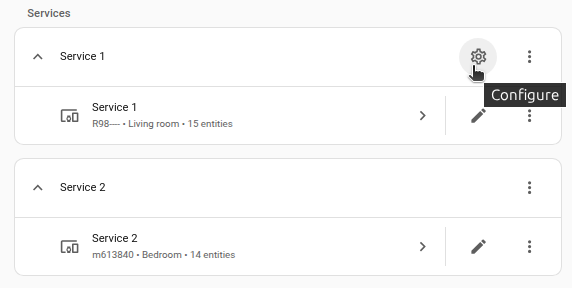
On the card, select the cogwheel
. - If the card does not have a cogwheel, the integration does not support options for this service.
-
Edit the options, then select Submit to save the changes.
The options are the same three lists, so you can change what you track at any time.
Data updates
The integration pollsData polling is the process of querying a device or service at regular intervals to check for updates or retrieve data. By defining a custom polling interval, you can control how frequently your system checks for new data, which can help optimize performance and reduce unnecessary network traffic. [Learn more] the Home Assistant analytics service every 12 hours. If a request to the analytics service fails, the integration retries the update after 15 minutes.
Removing the integration
This integration follows standard integration removal. No extra steps are required.
To remove an integration instance from Home Assistant
- Go to Settings > Devices & services and select the integration card.
- Next to the entry you want to remove, select the three dots
menu. Then, select Delete. - Depending on the integration, the entries are listed under one of the following headings:
- Devices
- Hubs
- Services
- Integration entries
- Depending on the integration, the entries are listed under one of the following headings:
- To confirm, select Delete.
- Home Assistant also deletes the devices and entities of the entry.
- If Home Assistant asks you to restart, restart Home Assistant.
- If Home Assistant asks whether to also delete the application credentials, select Remove or Keep.
- If you keep them, Home Assistant uses them automatically when you add the integration again.
- To delete them later, refer to Deleting application credentials.