Jellyfin
The Jellyfin integrationIntegrations connect and integrate Home Assistant with your devices, services, and more. [Learn more] exposes a Jellyfin server as a media source in Home Assistant. This integration has been tested with Jellyfin server version 10.6.4 and later.
Configuration
To add the Jellyfin service to your Home Assistant instance, use this My button:

If the above My button doesn’t work, you can also perform the following steps manually:
-
Browse to your Home Assistant instance.
-
In the bottom right corner, select the
Add Integration button. -
From the list, select Jellyfin.
-
Follow the instructions on screen to complete the setup.
The URL of the Jellyfin server. Please supply the full URL including the protocol and optional webroot. For example https://media.example.com, http://10.1.1.100:8096 or http://home.example.com/jellyfin.
Options
To define options for Jellyfin, follow these steps:
-
In Home Assistant, go to Settings > Devices & services.
-
If multiple instances of Jellyfin are configured, choose the instance you want to configure.
-
On the card, select the cogwheel
. - If the card does not have a cogwheel, the integration does not support options for this device.
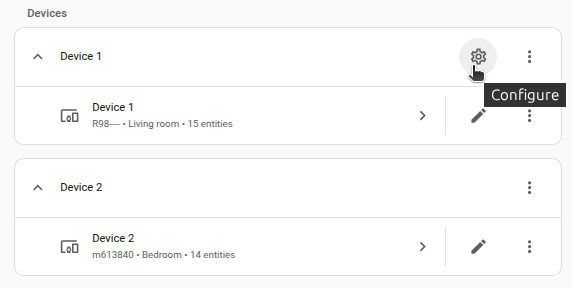
-
Edit the options, then select Submit to save the changes.
Entities
Media player entities
This integration sets up every media session connected to the Jellyfin server as a media player in Home Assistant. These entities will display media information, playback progress, and playback controls. Browsing media inside Home Assistant in a player’s context provides all supported library types.
Remote entities
This integration also creates a remote entityAn entity represents a sensor, actor, or function in Home Assistant. Entities are used to monitor physical properties or to control other entities. An entity is usually part of a device or a service. [Learn more] for sending Jellyfin remote commands to each client, if supported. For example, the following script can be used to tell the client to navigate right twice, down once, and select the focused item:
jellyfin_remote_script:
  alias: "Jellyfin Remote Script"
  sequence:
    - action: remote.send_command
      target:
        entity_id: remote.jellyfin_client
      data:
        delay_secs: 1.5
        command:
          - MoveRight
          - MoveRight
          - MoveDown
          - Select
Actions
Action browse_media
You can use the media_player.browse_media action to step through your Jellyfin library to find media you want to play. An entity_id must be passed so that Jellyfin knows what content the player is authorized to view and is capable of playing (e.g., so that speakers will not attempt to play video).
- Data attribute:
media_content_id- Optional: Yes.
- Description: Unique identifier of the content into which you want to browse. If unset, you will begin browsing at the root node.
- Example:
a656b907eb3a73532e40e44b968d0225
Examples:
action: media_player.browse_media
target:
  entity_id: media_player.jellyfin
data:
  media_content_id: a656b907eb3a73532e40e44b968d0225
Response
media_player.jellyfin:
  title: Series
  media_class: directory
  media_content_type: None
  media_content_id: a656b907eb3a73532e40e44b968d0225
  children_media_class: directory
  can_play: false
  can_expand: true
  can_search: false
  thumbnail: >-
    https://jellyfin
  not_shown: 0
  children:
    - title: "Tales of the Jedi"
      media_class: directory
      media_content_type: tvshow
      media_content_id: 34361f3855c9c0ac39b0f7503fe86be0
      children_media_class: null
      can_play: false
      can_expand: true
      can_search: false
      thumbnail: >-
        https://jellyfin
Action search_media
You can use the media_player.search_media action to find media you want to play. As with browsing, an entity_id is required.
- Data attribute:
search_query- Optional: No.
- Description: The term for which to search.
Examples:
action: media_player.search_media
target:
  entity_id:
    - media_player.jellyfin
data:
  search_query: star
Response
media_player.jellyfin:
  version: 1
  result:
    - title: Star Wars
      media_class: directory
      media_content_type: Video
      media_content_id: 895dc4e1066da92847d48f9be28eb77c
      children_media_class: null
      can_play: false
      can_expand: false
      can_search: false
      thumbnail: >-
        https://jellyfin
      not_shown: 0
      children: []
    - title: Star Trek
      media_class: directory
      media_content_type: Video
      media_content_id: 5ae55567cae75c26671a0a6b027bdd5b
      children_media_class: null
      can_play: false
      can_expand: false
      can_search: false
      thumbnail: >-
        https://jellyfin
      not_shown: 0
      children: []
Action play_media
To play media on any player you first need to find the media_content_id of the content you want to play, through either browsing to the media or searching media. An entity_id target is required.
- Data attribute:
media_content_id- Optional: No.
- Description: Unique identifier of the content you want to play.
- Example:
a982a31451450daeda02c89952e6d7cf
- Data attribute:
media_content_type- Optional: No.
- Description: The type of content you are playing, one of “episode”, “season”, “tvshow”, “movie”, or “music”.
- Example:
tvshow
- Data attribute:
enqueue- Optional: Yes.
- Description: When set, queue up the media as described. Select one of “next” to play the content after the current media is finished, or “add” to append the media to the end of the current play queue. When unset, the current play queue will be replaced with the selected content.
- Example:
next
Examples:
Play a movie on one of the Jellyfin clients that supports playback.
action: media_player.play_media
target:
  entity_id:
    - media_player.living_room
data:
  media_content_id: a982a31451450daeda02c89952e6d7cf
  media_content_type: movie
Add a TV episode to the play queue on a Jellyfin client that supports playback.
action: media_player.play_media
target:
  entity_id:
    - media_player.living_room
data:
  media_content_id: 5ae55567cae75c26671a0a6b027bdd5b
  media_content_type: episode
  enqueue: next
Action jellyfin.play_media_shuffle
The Jellyfin API supports shuffling of a directory (series/tvshow or season) when beginning playback. This is enabled through a separate serviceThe term “service” in Home Assistant is used in the sense of an information
service. For example, the municipal waste management service that provides
entities for organic, paper, and packaging waste. In terms of functionality,
the information service is like a device. It is called service to avoid
confusion, as it does not come with a piece of hardware. to play_media. This will immediately replace the current play queue of the client with the shuffled media. An entity_id target is required.
- Data attribute:
media_content_id- Optional: No.
- Description: Unique identifier of the content you want to play.
- Example:
895dc4e1066da92847d48f9be28eb77c
Examples:
Shuffle play a full season of a TV show on a Jellyfin client.
action: jellyfin.play_media_shuffled
target:
  entity_id:
    - media_player.chrome
data:
  media_content_id: 34361f3855c9c0ac39b0f7503fe86be0
Notes
- The player supports the enqueue options “next” and “add” only. The options “play” and “replace” will act as if the
enqueuekey was not set, and will replace the current play queue. - The selection of
media_content_typeis generally inconsequential to Jellyfin, and any string can be supplied here to pass validation.
Known limitations
- Support is currently limited to music, movie and TV show libraries only. Other libraries will not appear in the media browser.