Introduction to dashboards
Dashboards are customizable pages that display information about your smart home devices.
Types of dashboards
In the left sidebar, you see the names of different dashboards. Home Assistant comes with different dashboard types out of the box, such as:
- Overview
- Energy
- Map
- Activity
- History
- To-do lists
Elements of a dashboard
The main elements of a dashboard are cards and views.
A card is an element of the User Interface that shows information about a smart deviceA device is a model representing a physical or logical unit that contains entities., a serviceThe term “service” in Home Assistant is used in the sense of an information service. For example, the municipal waste management service that provides entities for organic, paper, and packaging waste. In terms of functionality, the information service is like a device. It is called service to avoid confusion, as it does not come with a piece of hardware., or an entityAn entity represents a sensor, actor, or function in Home Assistant. Entities are used to monitor physical properties or to control other entities. An entity is usually part of a device or a service. [Learn more] and even allows you to control them, depending on the category of the card. For more information on cards and how to edit them, refer to the Cards page.
A view is a tab inside a dashboard that displays cards in a specific layout. The layout is determined by the view type. A dashboard can have one or many views and, for each view, you can choose the cards that you want to display, and in which view type. For more information on views and how to edit them, refer to the Views page.
The cards in the following screenshot are displayed in a sections view of a dashboard. In the upper menu bar, each icon represents a different tab, that is, a view.
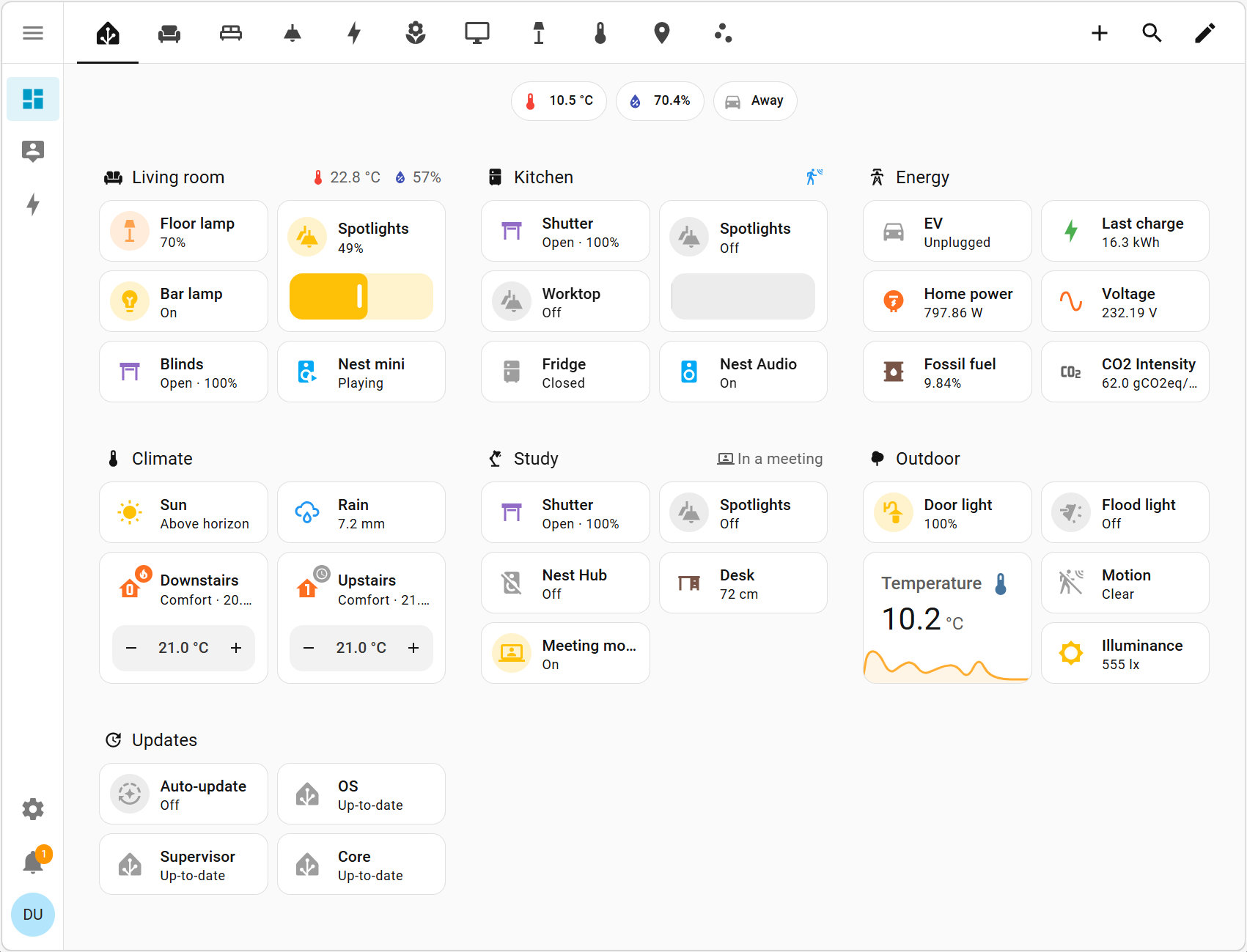 A fully populated dashboard in the sections view layout
First contact with the Overview dashboard
The Overview dashboard is the first page you see after the onboarding process.
If you just onboarded, your dashboard will be nearly empty. It has the sections view layout and shows cards for devices that were detected automatically.
The following cards appear automatically on your Overview dashboard:
- An entities card of the person defined as the Home Assistant owner. It presents the name and the stateThe state holds the information of interest of an entity, for example, if a light is on or off. Each entity has exactly one state and the state only holds one value at a time. However, entities can store attributes related to that state such as brightness, color, or a unit of measurement. [Learn more] of the person.
- You can track whether a person is present or not and create automations based on that. For example, turn down the heating when everyone has left home. For more information on automations based on presence, start with presence detection.
- A weather forecast card of the weather for your location, if you provided it during onboarding.
Your dashboard may look quite different, depending on the smart devices that you have at home. For example, if you have the following devices, they will be detected:
- A smart speaker connected to Wi-Fi, such as a Sonos speaker.
- Result: a media control card will be displayed on your Overview dashboard.
- Bluetooth temperature sensors and a Bluetooth module in Home Assistant.
- Result: entities cards will be shown on your Overview dashboard.
- Note that, if your Home Assistant does not have a Bluetooth module yet, the Bluetooth devices that you have in your home won’t be shown automatically.
- Light sensors.
- Result: entities cards will be shown on your Overview dashboard with the status of some lights.
If your Home Assistant has other controllers, such as a Zigbee or a Z-Wave controller, and you have Zigbee or Z-Wave devices, these could be detected and shown on the Overview dashboard. There you will have cards representing control elements that allow you, for example, to:
- Change the ventilation.
- Change the color of the lights.
- Turn on a smart TV and start YouTube.
However, these devices usually need to be paired first.
Creating a new dashboard
The default Overview dashboard updates automatically when you add new devices. However, once you start editing the default dashboard, it no longer updates automatically. For this reason, we start here by adding a new dashboard. This lets us keep the default Overview dashboard.
Follow the steps in Creating a new dashboard.
Editing cards in a new dashboard
This section describes how to edit cards in a recently created dashboard, namely how to:
- Change the details of a weather forecast card.
- Add a new weather forecast card.
- Change the position of cards.
-
Open your new dashboard. It might not have much on it yet.
- If you have smart home devices in your home, some may have been connected automatically.
- Some cards are there by default, such as the weather forecast card, and a card for the person who set up the system.
-
To edit the weather forecast card, for example, select it and then select the cogwheel
. -
Change any of the units or other details, such as name and icon, if you like.
- Do not change the Entity ID.
- Once you are done, select Update.
-
For the next activities, you need to edit your dashboard. In the top right of the screen, select the
button. -
In the Edit dashboard dialog, go to the three dots
menu, and then select Take control. - Note that, by editing the dashboard, you are taking control over it. The dashboard will no longer update automatically when new entitiesAn entity represents a sensor, actor, or function in Home Assistant. Entities are used to monitor physical properties or to control other entities. An entity is usually part of a device or a service. [Learn more] or dashboard components are available. You can’t revert this. However, you can create a new default dashboard.
- Read the text in the dialog and if you agree, select Take control.
-
Now you can add a new card for this weather serviceThe term “service” in Home Assistant is used in the sense of an information service. For example, the municipal waste management service that provides entities for organic, paper, and packaging waste. In terms of functionality, the information service is like a device. It is called service to avoid confusion, as it does not come with a piece of hardware..
- Select the weather forecast card again, go to the three dots
menu, and then select Service info. - Under Sensors, select Add to dashboard.
- In the Choose a view dialog, select your dashboard from the dropdown list, and then select Next.
- In the suggestion dialog, select Pick different card.
- Select the weather forecast card again, go to the three dots
-
On the By card tab of the dialog, select the Weather forecast card.
-
In the Weather forecast card configuration dialog:
- Select the details to be shown on the card, and then select Save.
- Go back to the edit window, and select Done.
- Result: You see the new weather forecast card on the dashboard.
-
If you want to delete the other weather forecast card from the dashboard:
- In the top right corner, select the
button to go back to the edit mode. - Do not select the card. Go to the three dots
menu in the lower right corner of the card, and then select Delete.
- In the top right corner, select the
-
Finally, to move the weather forecast card to the top left corner:
- On the bottom of the card, select the number or use the minus button to enter
1. - Change the number on the other cards, if you want to move them around.
- When you are done, in the top right corner, select Done.
- On the bottom of the card, select the number or use the minus button to enter
-
If you want to change the configuration of another card, select the
button again, and then select Edit on the card.
Congratulations! You have completed your first dashboard customization.
Learning more about dashboards
If you want to learn more about dashboards, views, and cards, take a look at these topics:
- Take a look at the introduction to dashboards and learn about dashboard types.
- Learn more about view types
- Learn how to add cards to a view.
Next step: integrations
To continue with this tutorial, select the button below to learn about integrationsIntegrations connect and integrate Home Assistant with your devices, services, and more. [Learn more].