OpenAI
The OpenAI integrationIntegrations connect and integrate Home Assistant with your devices, services, and more. [Learn more] adds a conversation agent powered by OpenAI in Home Assistant.
Controlling Home Assistant is done by providing the AI access to the Assist API of Home Assistant. You can control what devices and entities it can access from the exposed entities page. The AI is able to provide you information about your devices and control them.
This integration does not integrate with sentence triggers.
This integration requires an API key to use, which you can generate here.. This is a paid service, we advise you to monitor your costs in the OpenAI portal closely and configure usage limits to avoid unwanted costs associated with using the service.
Prerequisites
This integration works only with the official OpenAI API endpoint and does not support OpenAI-API-compatible third-party services, proxies, or alternative backends. If you need support for other providers, consider using the OpenRouter integration as an alternative.
The OpenAI key is used to authenticate requests to the OpenAI API. To generate an API key take the following steps:
- Log in to the OpenAI portal or sign up for an account.
- Enable billing with a valid credit card
- Configure usage limits.
- Visit the API Keys page to retrieve the API key you’ll use to configure the integration.
Configuration
To add the OpenAI service to your Home Assistant instance, use this My button:

If the above My button doesn’t work, you can also perform the following steps manually:
-
Browse to your Home Assistant instance.
-
In the bottom right corner, select the
Add Integration button. -
From the list, select OpenAI.
-
Follow the instructions on screen to complete the setup.
Options
To define options for OpenAI, follow these steps:
-
In Home Assistant, go to Settings > Devices & services.
-
If multiple instances of OpenAI are configured, choose the instance you want to configure.
-
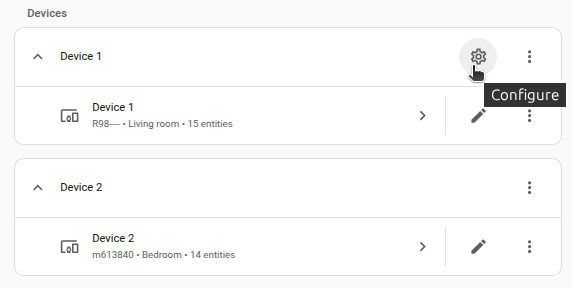
On the card, select the cogwheel
. - If the card does not have a cogwheel, the integration does not support options for this device.
-
Edit the options, then select Submit to save the changes.
The integration provides the following types of subentries:
The Conversation and AI Task subentries have the following configuration options (some of them may be unavailable due to subentry type or model choice):
Instructions for the AI on how it should respond to your requests. It is written using Home Assistant Templating.
If the model is allowed to interact with Home Assistant. It can only control or provide information about entities that are exposed to it.
If you choose to not use the recommended settings, you can configure the following options:
The GPT language model is used for text generation. You can find more details on the available models in the ChatGPT Documentation. The default is “gpt-4o-mini”.
The maximum number of words or “tokens” that the AI model should generate in its completion of the prompt. For more information, see the OpenAI Completion Documentation.
A value that determines the level of creativity and risk-taking the model should use when generating text. A higher temperature means the model is more likely to generate unexpected results, while a lower temperature results in more deterministic results. See the OpenAI Completion Documentation for more information.
An alternative to temperature, top_p determines the proportion of the most likely word choices the model should consider when generating text. A higher top_p means the model will only consider the most likely words, while a lower top_p means a wider range of words, including less likely ones, will be considered. For more information, see the OpenAI Completion API Reference.
The available service tiers are Auto, Standard, Flex, and Priority. Flex tier offers lower costs in exchange for slower response times, which can be useful for background automations. Priority processing delivers significantly lower and more consistent latency than the Standard tier at a higher price. Auto is the default value, which uses the project settings. See the Pricing for details on the supported models. When the selected tier is unavailable due to capacity or ramp rate limits, the request is processed at the Standard tier, and you are charged the Standard tier price.
Enable OpenAI-provided Web search tool. Note that it is only available for gpt-4o and newer models.
The search is performed with a separate fine-tuned model with its own context and its own pricing. This parameter controls how much context is retrieved from the web to help the tool formulate a response. The tokens used by the search tool do not affect the context window of the main model. These tokens are also not carried over from one turn to another — they’re simply used to formulate the tool response and then discarded. This parameter would affect the search quality, cost, and latency.
The Speech-to-text (STT) subentries have the following configuration options:
Instructions that can be used to improve the quality of the transcripts by giving the model additional context similarly to how you would prompt other LLMs. The model will try to match the style, language, and context of the prompt. You can also use it to pass a dictionary of the correct spellings of common misunderstood words. Check the OpenAI guide on prompting STT models for additional hints. Templates are not supported here.
The Text-to-speech (TTS) subentries have the following configuration options:
Instructions for the AI on how it should read your text. You can prompt the model to control aspects of speech, including accent, emotional range, intonation, impressions, speed of speech, tone, whispering, and more. Templates are not supported here.
Talking to Super Mario over the phone
You can use an OpenAI Conversation integration to talk to Super Mario and, if desired, have it control devices in your home.
Actions
The actions below are deprecated and will be removed in the future. Please use the corresponding AI Task actions instead.
Action openai_conversation.generate_image
Allows you to ask OpenAI to generate an image based on a prompt. This action populates Response Data with the requested image.
| Data attribute | Optional | Description | Example |
|---|---|---|---|
config_entry |
no | Integration entry ID to use. | |
prompt |
no | The text to turn into an image. | Picture of a dog |
size |
yes | Size of the returned image in pixels. Must be one of 1024x1024, 1792x1024, or 1024x1792, defaults to 1024x1024. |
1024x1024 |
quality |
yes | The quality of the image that will be generated. hd creates images with finer details and greater consistency across the image. |
standard |
style |
yes | The style of the generated images. Must be one of vivid or natural. Vivid causes the model to lean towards generating hyper-real and dramatic images. Natural causes the model to produce more natural, less hyper-real looking images. |
vivid |
action: openai_conversation.generate_image
data:
  config_entry: abce6b8696a15e107b4bd843de722249
  prompt: "Cute picture of a dog chasing a herd of cats"
  size: 1024x1024
  quality: standard
  style: vivid
response_variable: generated_image
The response data field url will contain a URL to the generated image and revised_prompt will contain the updated prompt used.
Example using a generated image entity
The following example shows an automation that generates an image and displays it in a image template entity. The prompt uses the state of the weather entity to generate a new image of New York in the current weather state.
The resulting image entity can be used in, for example, a card on your dashboard.
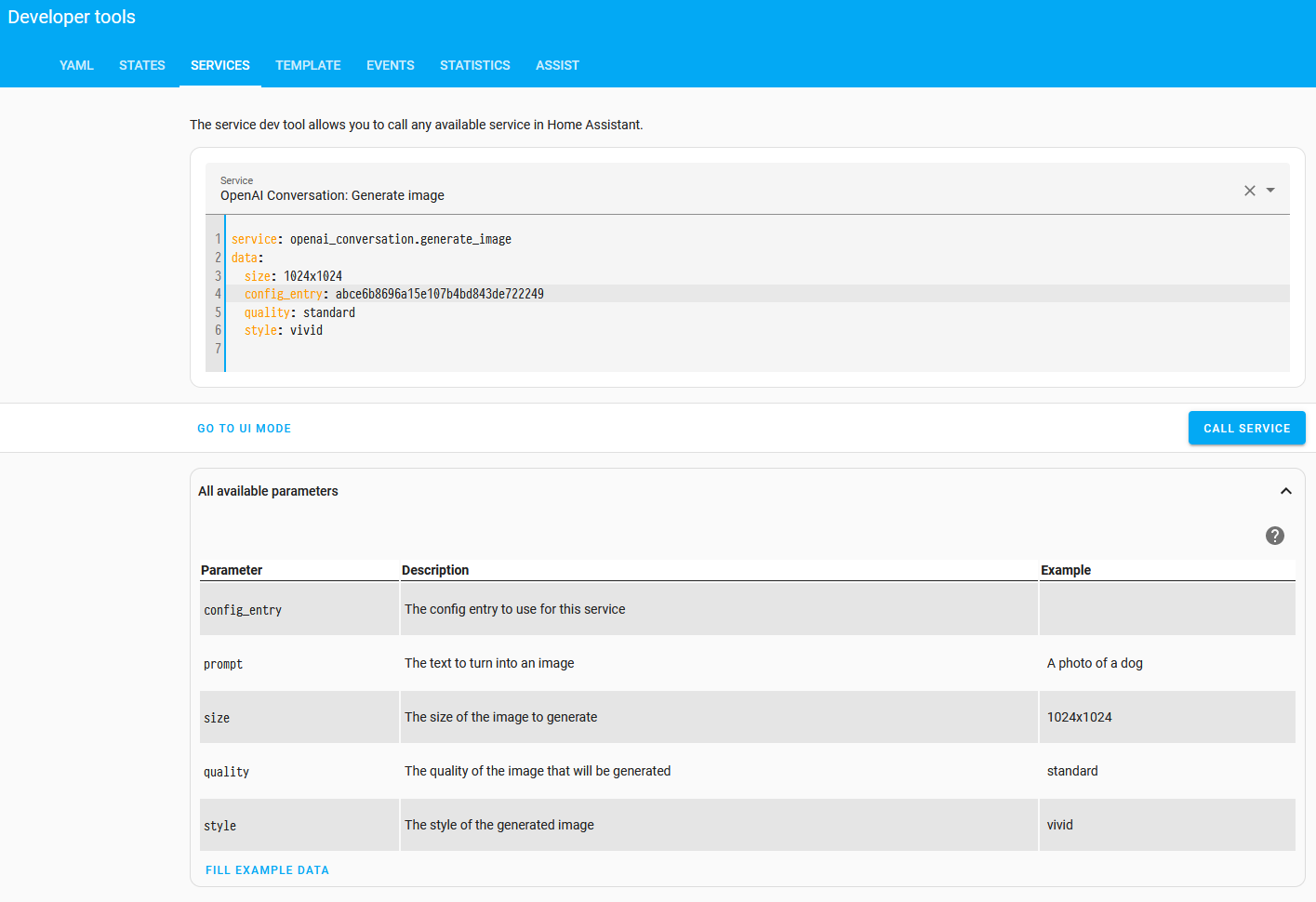
The config_entry is installation specific. To get the value, make sure the integration has been installed. Then, go to Settings > Developer tools > Actions. Ensure you are in UI mode and enter the following below:
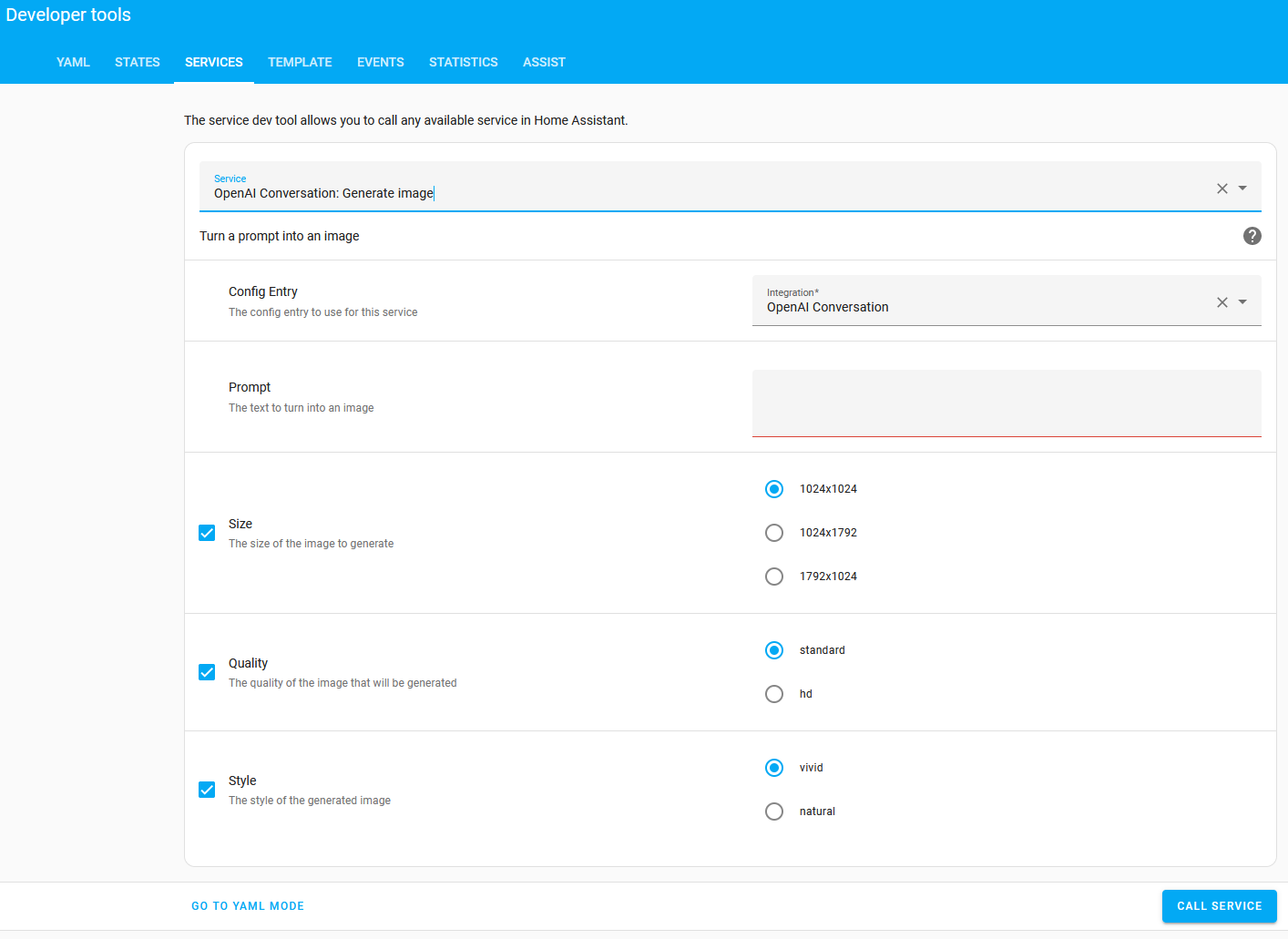
Select YAML Mode to reveal the config_entry value to be used in the below example automation.
automation:
  - alias: "Update image when weather changes"
    triggers:
      - trigger: state
        entity_id: weather.home
    actions:
      - alias: "Ask OpenAI to generate an image"
        action: openai_conversation.generate_image
        response_variable: generated_image
        data:
          config_entry: abce6b8696a15e107b4bd843de722249
          size: "1024x1024"
          prompt: >-
            New York when the weather is {{ states("weather.home") }}

      - alias: "Send out a manual event to update the image entity"
        event: new_weather_image
        event_data:
          url: '{{ generated_image.url }}'

template:
  - trigger:
      - alias: "Update image when a new weather image is generated"
        trigger: event
        event_type: new_weather_image
    image:
      - name: "AI generated image of New York"
        url: "{{ trigger.event.data.url }}"
Action: Generate content
The openai_conversation.generate_content action allows you to ask OpenAI to generate a content based on a prompt. This action
populates Response Data
with the response from OpenAI.
-
Data attribute:
config_entry- Description: Integration entry ID to use.
- Example:
- Optional: no
-
Data attribute:
prompt- Description: The text to generate content from.
- Example: Describe the weather
- Optional: no
-
Data attribute:
image_filename- Description: List of file names for images to include in the prompt.
- Example: /tmp/image.jpg
- Optional: yes
action: openai_conversation.generate_content
data:
  config_entry: abce6b8696a15e107b4bd843de722249
  prompt: >-
    Very briefly describe what you see in this image from my doorbell camera.
    Your message needs to be short to fit in a phone notification. Don't
    describe stationary objects or buildings.
  image_filename:
    - /tmp/doorbell_snapshot.jpg
response_variable: generated_content
The response data field text will contain the generated content.
Another example with multiple images:
action: openai_conversation.generate_content
data:
  prompt: >-
    Briefly describe what happened in the following sequence of images
    from my driveway camera.
  image_filename:
    - /tmp/driveway_snapshot1.jpg
    - /tmp/driveway_snapshot2.jpg
    - /tmp/driveway_snapshot3.jpg
    - /tmp/driveway_snapshot4.jpg
response_variable: generated_content
Known Limitations
Currently the integration does not have any known limitations.
Removing the integration
This integration follows standard integration removal. No extra steps are required.
To remove an integration instance from Home Assistant
- Go to Settings > Devices & services and select the integration card.
- From the list of devices, select the integration instance you want to remove.
- Next to the entry, select the three dots
menu. Then, select Delete.